
It's 2 PM. You're on a roof installing shingles. Your phone rings. A homeowner has an emergency leak water pouring into their living room. Your AI receptionist answers, gets their details, promises a callback.
But here's the problem: The lead isn't in your CRM. The appointment isn't on your calendar. The emergency request sits in a transcript you won't read until tonight. By then, they've called three other roofers. One answered. You lost a $4,200 job.
This is the answer versus action gap. Your AI can answer every call, but without integration, the data goes nowhere. The lead dies in a transcript.
Industry research shows 74.1% of calls to home services contractors go completely unanswered. For a typical contractor receiving 42 calls per month, that's 31 missed calls or $260,400 per year in lost revenue at a 20% conversion rate.
But here's what most businesses don't realize: Answering the call is only half the battle. Integration is what closes the loop automatically logging the lead in your CRM, booking the appointment on your calendar, sending a confirmation SMS, and routing emergencies to your phone.
This guide covers all 14 integration categories for AI receptionists, with comparison tables, decision frameworks, and realistic implementation timelines. You'll learn which integrations matter for your business type, how to prioritize setup, and how to connect your AI receptionist to literally any platform you use.
Why AI Receptionist Integration Matters
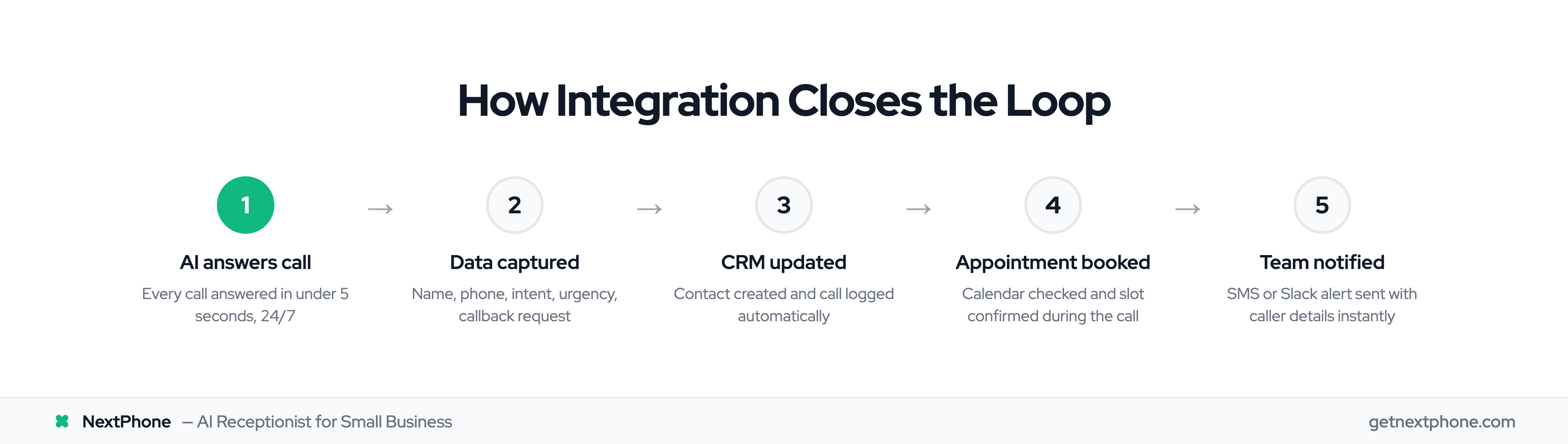
The Answer vs. The Action Gap
An AI virtual receptionist solves the availability problem. AI receptionists answer every call in under 5 seconds, 24/7, without sick days or vacations. But answering isn't enough.
Without integration, here's what happens: Your AI answers a call. The customer wants a quote. The AI collects their name, phone, email, and project details. The conversation ends. The data sits in a transcript. You read it 6 hours later. You call back. They don't answer. You try again tomorrow. They've already hired someone else.
The gap between answering and action is where leads die.
What "Closing the Loop" Actually Means
Integration closes this gap. Here's the same scenario with integration:
Your AI answers the call. The customer wants a quote. The AI collects their details and immediately:
- Creates a contact in your CRM with all information
- Checks your calendar and books an appointment
- Sends the customer a confirmation SMS with date and time
- Notifies you via Slack or email
- Adds notes about the project type and budget
- Tags the lead for follow-up if they didn't book
All of this happens during or immediately after the call. No manual data entry. No forgotten callbacks. No lost leads.
This is what we mean by "closing the loop": the AI completes real workflows that move your business forward.
The Real Cost of Disconnected Systems
Our data shows exactly what disconnected systems cost you.
Across the 1,446,980+ business calls we've answered, approximately one in four callers explicitly requests a callback. Without a CRM or tracking system to log these requests, most businesses forget. most of those callbacks never happen when there's no system tracking them.
For a contractor receiving 42 calls per month, that's 11 callback requests. Missing 9 of those (80%) at a 30% conversion rate and $3,500 average project value equals $9,450 per month in lost revenue or $113,400 per year.
Then there are emergencies. Calls containing urgency keywords like "emergency," "urgent," or "ASAP" rank among the top reasons people call. For home services contractors, these emergency calls average $4,200 in revenue significantly higher than routine work. Missing just one emergency call per week costs you $16,800 per month, or $201,600 per year.
According to recent integration research, 24% of companies lose more than $500,000 annually due to inadequate business software system integrations. For small businesses, the losses are smaller in absolute dollars but often more devastating as a percentage of revenue.
The Hidden Cost of NOT Integrating
Lost Callback Revenue
Let's do the math on callbacks. If you're receiving 42 calls per month (the average for contractors), approximately one in four of those callers will explicitly ask for a callback. That's roughly 11 people per month who want you to call them back.
Without a CRM tracking these requests, you'll forget most of them. You'll remember the ones from this morning. You'll forget the ones from three days ago. most of those callbacks never happen without a systematic tracking system.
Missing 9 callback requests per month at a 30% conversion rate and $3,500 average project value means you're losing $9,450 per month $113,400 per year.
With CRM integration, every callback request is logged automatically. The AI creates a task in your CRM, sets a reminder, and even categorizes the lead by urgency. You can't forget because the system won't let you.
Emergency Call Economics
Emergency calls are disproportionately valuable. In our data, calls containing urgency keywords rank among the top reasons people call, and true emergencies pipe bursts, electrical failures, AC breakdowns in 95-degree heat are a recurring reason people call.
These calls convert at higher rates and command premium pricing. Emergency jobs typically run around $4,200 in revenue compared to $3,500 for routine work.
Missing just one emergency call per week costs you $16,800 per month, or $201,600 per year.
Phone system integration with emergency routing solves this. When your AI detects keywords like "emergency," "urgent," "flooding," or "no power," it can transfer the call directly to your mobile phone even after hours. The customer gets immediate help. You capture the high-value job.
Manual Data Entry Time Waste
Even if you don't lose the lead entirely, manual data entry is killing your productivity.
For every call you do remember to log, you're spending 10 minutes entering data into your CRM. Name. Phone number. Email. Company. What they wanted. When to follow up. Project type. Budget. Notes.
If you're answering 11 calls per month manually (the 31 you miss plus the 11 you answer), that's 110 minutes nearly 2 hours of pure data entry. For a contractor billing $100+ per hour, that's $200+ in lost billable time every month.
More importantly, it's 2 hours you could spend closing deals, working on projects, or going home to your family.
Integration eliminates this completely. The data flows from the call into your systems automatically. You review it, but you don't type it.
14 Integration Categories for AI Receptionists
AI receptionist integrations fall into 14 major categories. Some are universal (every business needs CRM and calendar). Others are industry-specific (field service software for contractors, legal platforms for law firms).
According to Gartner's research, by 2025, over 90% of new enterprise applications will incorporate APIs as core components of their architecture. Meanwhile, integration adoption data shows that more than 83% of enterprises use APIs to maximize ROI on their digital assets through effective integration strategies.
Here's the complete category breakdown:
Core Business Systems
- CRM Integration: HubSpot, Salesforce, Pipedrive, Zoho, Monday, Copper automatic lead logging and contact management
- Calendar Integration: Google Calendar, Outlook, Apple Calendar, Calendly, Acuity real-time appointment booking during calls
- Communication Tools: Slack, Microsoft Teams, Email, SMS instant team notifications and customer follow-ups
Industry-Specific Platforms
- Field Service Software: Housecall Pro, Jobber, ServiceTitan job dispatch and customer portal updates for contractors
- Legal Practice Management: Clio, MyCase, PracticePanther client intake and matter management for law firms
- Medical Practice Systems: Practice management software with secure call logging and appointment scheduling
Marketing & Growth Tools
- Email Marketing: Mailchimp, Constant Contact automatic list building from inbound calls
- Marketing Platforms: Google Business Profile, Typeform form submission triggers and review request automation
- Analytics & Tracking: Google Analytics, Facebook Conversions API call attribution and conversion tracking
Technical & Developer Tools
- Automation Platforms: Zapier, Make, n8n connect any two systems with visual workflow builders
- Phone Systems: RingCentral, Twilio, Verizon call transfer, forwarding, and emergency routing
- API & Webhooks: HTTP webhooks to connect to literally anything, including custom-built systems
- Project Management: Asana, Trello, Monday automatic task creation from calls
- Dispatch Software: Towbook direct job creation during the call, Samsara fleet dispatch automation
Each category serves a different purpose. The key is knowing which ones matter for your specific business type we'll cover that in the decision framework section below.
CRM Integrations: Never Lose a Lead Again
Why CRM Integration is Non-Negotiable
Your CRM is your business memory. Every lead, every interaction, every follow-up task lives there. Without AI receptionist integration, you're manually transferring information from call transcripts into your CRM or worse, you're not transferring it at all. CRM integrations save sales teams 4 hours per week per rep and deliver $8.71 ROI for every dollar spent.
CRM integration automatically logs every call in real-time. Name, phone, email, company, call intent, urgency level, callback requested everything the AI captured flows directly into a new contact or updates an existing one.
Research from Octavius.ai found that businesses integrating AI receptionists with CRMs report a 19.6% increase in revenue. Why? Because they're not losing leads to manual data entry gaps and forgotten follow-ups.
The numbers back this up: 97% of CRM users meet or exceed their sales targets vs just 54% without CRM. Though notably, only 27-34% of teams fully utilize their CRM. Integration changes that.
Our data backs this up. Approximately one in four callers explicitly requests a callback. Without CRM integration to track these requests, most fall through the cracks. With integration, every callback request becomes a task with a deadline and a reminder.
Top CRM Platforms for AI Receptionists
The major CRM platforms all support AI receptionist integration, though the implementation method varies:
HubSpot: The most popular choice for small to mid-sized businesses. HubSpot offers native API integration and works seamlessly with Zapier. You can auto-create contacts, update deal stages, log notes, and create tasks all from a single call. Setup time: 30-60 minutes. See our complete HubSpot integration guide.
Salesforce: The enterprise standard. Salesforce integration is more complex but incredibly powerful. You can map call data to custom fields, trigger workflows, and update multiple related records. Best for established businesses with dedicated CRM admins. Setup time: 2-4 hours. Learn more about Salesforce integration.
Pipedrive: Built for sales teams. Pipedrive excels at pipeline management and deal tracking. AI receptionist integration can auto-create deals, move them through stages, and schedule follow-up activities. Simpler than Salesforce, more sales-focused than HubSpot. Setup time: 45-90 minutes. Read our Pipedrive integration guide.
Zoho CRM: The budget-friendly option with surprisingly robust features. Zoho works well for small businesses that need CRM capability without HubSpot's price tag. Native API support and Zapier compatibility. Setup time: 1-2 hours. View Zoho CRM integration details.
Monday.com: Technically a work OS, but many businesses use it as a CRM. Highly visual, easy for non-technical teams. Great for contractors and service businesses. Setup time: 30-45 minutes. Check out Monday.com integration.
Copper: Built specifically for Google Workspace users. If you live in Gmail, Copper is the most natural CRM choice. Setup time: 30-60 minutes.
Native vs. Zapier vs. Webhook Integration
There are three ways to connect your AI receptionist to your CRM:
Native Integration (Easiest): Some AI receptionists offer pre-built, click-to-connect integrations with major CRMs. You authenticate your account, map a few fields, and you're done. Fastest setup, least flexibility. Best for: Non-technical users who use popular CRMs.
Zapier Integration (Middle Ground): Zapier acts as middleware, connecting your AI receptionist to 8,000+ apps including all major CRMs. 2.2 million+ businesses use Zapier for this exact purpose. You build a "Zap" (workflow) that says "When AI receptionist receives call, create HubSpot contact with this data." More flexible than native, easier than custom code. Best for: Small businesses with standard needs across multiple tools.
HTTP Webhook (Most Flexible): For maximum control, use HTTP webhooks to send call data directly to your CRM's API. You can map any field, trigger custom workflows, and integrate with proprietary systems. Requires technical knowledge or developer help. Best for: Custom CRMs, complex workflows, or businesses with specific field mapping requirements.
What Data Should Sync to Your CRM
Not all call data needs to go into your CRM. Here's what we recommend syncing:
Essential Fields:
- Contact name
- Phone number (with click-to-call formatting)
- Email address
- Company name (if applicable)
- Call date and time
- Call duration
Qualification Fields:
- Call intent (quote request, question, complaint, etc.)
- Budget or project value (if discussed)
- Timeline (urgent, this week, this month, just browsing)
- Callback requested (yes/no)
- Lead source (if your AI asks "how did you hear about us?")
Workflow Triggers:
- Urgency level (emergency, high, normal, low)
- Lead score (based on budget and timeline)
- Next action required (schedule estimate, send info, follow up)
The key is setting up field mapping during integration setup. Most platforms let you customize which AI-collected parameters map to which CRM fields.
Calendar & Scheduling Integrations
Real-Time Appointment Booking During Calls
Calendar integration transforms your AI from an answering service into a booking engine. Instead of the caller saying "I'd like to schedule an appointment" and you saying "I'll call you back to schedule," the AI can check your availability and book the appointment right there on the call.
This eliminates phone tag completely. The customer gets their preferred time slot. You get a confirmed appointment on your calendar. Both parties receive confirmation emails or texts. It's done.
In our call data, booking or rescheduling an appointment is the single most common reason people call. For a business receiving 42 calls per month, that's a steady stream of appointment booking opportunities. Without calendar integration, you're playing phone tag with customers who might book with a faster competitor.
Top Calendar Platforms
Google Calendar: The most widely used calendar platform. Integration is straightforward the AI connects to your Google account, reads available slots, and creates events with caller details. Two-way sync means changes in either direction stay updated. Setup time: 15-30 minutes. Complete Google Calendar integration guide.
Outlook Calendar: The standard for Microsoft 365 users. Works similarly to Google Calendar with native API support. Best for businesses already using Outlook for email. Setup time: 20-40 minutes. See Outlook integration setup.
Apple Calendar (iCal): Less common for business use, but works for solopreneurs who live in the Apple ecosystem. Integration is trickier than Google or Outlook usually requires Zapier or custom API work. Setup time: 1-2 hours.
Calendly: Not a calendar itself, but a scheduling layer on top of your calendar. Calendly excels at complex scheduling (different meeting types, buffer times, availability across multiple calendars). Your AI can send Calendly booking links or book directly via API. Setup time: 30-60 minutes. View Calendly integration details.
Acuity Scheduling: Similar to Calendly, owned by Squarespace. Popular with service providers (consultants, therapists, personal trainers). Good API support. Setup time: 45-90 minutes.
Availability Syncing Best Practices
The magic of calendar integration is two-way sync, but it requires proper setup:
Set Availability Windows: Don't let the AI book appointments at midnight. Define business hours (e.g., Monday-Friday 8 AM - 6 PM) and block off personal time, lunch breaks, and existing commitments.
Buffer Times: Build in travel time between appointments. If you need 30 minutes to drive between job sites, set 30-minute buffers so appointments don't stack back-to-back.
Appointment Types: Different services take different amounts of time. A quote might be 30 minutes, while a full job is 2 hours. Configure appointment types so the AI books the right amount of time.
Confirmation & Reminders: Automatically send confirmation emails or texts immediately after booking. Schedule reminder messages 24 hours before to reduce no-shows. Research shows appointment reminders reduce no-show rates by 30-50%.
The result: Your calendar stays full, customers get instant booking, and you eliminate the "I'll call you back to schedule" dance that loses deals.
Automation Platform Integrations: Connect Anything to Anything
What Are Automation Platforms?
Automation platforms are middleware tools that connect apps that don't have native integrations. Think of them as universal translators for software.
The most popular is Zapier, which connects over 7,000 apps through visual workflows called "Zaps." Zapier reached $310M revenue in 2024 with 2.2M+ businesses. When your AI receptionist receives a call, Zapier can automatically:
- Post a message to your #leads Slack channel
- Add a row to a Google Sheets tracking spreadsheet
- Send you an SMS notification
- Create a task in Asana
- Add the contact to a Mailchimp email list
- Update a row in Airtable
- Literally anything you can imagine if the apps have APIs
Automation platforms are especially valuable for businesses that use less common software or need complex multi-step workflows. AI-related tasks on Zapier have grown 760% in just 2 years, a clear signal of where business automation is heading.
Zapier vs Make vs n8n
Zapier is the market leader easiest to use, most apps (7,000+), best documentation. The downside is pricing: Free tier is very limited, paid plans range from $20/month (300 tasks) to $300+/month (unlimited). Best for: Small businesses that prioritize ease over cost. See our Zapier integration guide.
Make (formerly Integromat) is more visual and more affordable. Instead of linear Zaps, Make uses flowcharts, making complex workflows easier to build. Make offers 400+ pre-built AI app integrations, though 74% of companies are still struggling to generate AI value without proper integration. Pricing starts at $9/month with more generous task limits. The learning curve is steeper than Zapier but worth it for power users. Best for: Businesses with complex automation needs. View Make.com integration.
n8n is the open-source option. Self-hosted (you run it on your own server) or cloud-hosted ($20+/month). Most flexible, steepest learning curve, lowest long-term cost. Best for: Technical teams or businesses with developers on staff.
According to recent research, 75% of business leaders project full integration across their software stack by 2025. Meanwhile, low-code/no-code platforms like Zapier are seeing explosive growth 70% of new applications will use these technologies by 2025.
When to Use Automation Platforms vs Direct Integration
Use automation platforms when:
- Your platform doesn't have a native AI receptionist integration
- You need to connect multiple systems in sequence (call → CRM → Slack → Google Sheets)
- You want to avoid custom code
- Your needs change frequently (workflows are easy to modify)
Use direct integration (native or webhook) when:
- Speed matters (automation platforms add 1-30 second delays)
- You have high call volume (Zapier charges per task)
- You need guaranteed reliability (fewer points of failure)
- You have access to developers who can build custom integrations
For most small businesses, Zapier is the right choice for everything except CRM and calendar, which should use direct integration for speed and reliability.
Phone System Integrations
Call Transfer & Forwarding
The most critical phone system integration is call transfer the ability for your AI to hand off a call to a human mid-conversation.
This happens when:
- The caller explicitly asks to speak to a person
- The AI determines the question is too complex
- The call is an emergency requiring immediate human attention
- The caller is frustrated or upset
With phone system integration, the transfer is seamless. The AI says "Let me connect you to someone who can help," puts the caller on hold, and rings your phone. When you pick up, you see the caller's information and what they've discussed so far.
Without integration, the AI can only take a message and promise a callback which we've established loses 80% of opportunities.
Emergency Call Routing
Across the 1,446,980+ business calls we've answered, calls containing urgency keywords like "emergency," "urgent," or "ASAP" rank among the top reasons people call. True emergencies pipe bursts, electrical failures, AC breakdowns in extreme heat are a recurring reason people call.
Emergency calls are time-sensitive. Every minute you delay, the customer is calling competitors. They also convert at higher rates and command premium pricing, with emergency calls typically running around $4,200 compared to $3,500 for routine work.
Phone system integration with emergency routing solves this:
- Customer calls saying "my basement is flooding"
- AI detects keyword "flooding" and high urgency in voice tone
- AI immediately transfers to your mobile phone (even if it's 9 PM)
- You answer, already knowing it's an emergency
- You dispatch immediately and capture the $4,200+ emergency job
For home services contractors, HVAC companies, plumbers, and electricians, this single feature can pay for your entire AI receptionist system.
After-Hours Routing Options
Phone system integration also enables smart after-hours handling:
Normal business hours: AI handles routine questions, books appointments, transfers complex calls
After hours (non-urgent): AI takes detailed messages, books next available appointment, sends confirmation that someone will follow up tomorrow morning
After hours (urgent/emergency): AI transfers to your mobile phone or on-call technician
Weekends: Different routing (maybe transfers to your business partner instead of you)
Holidays: Custom greeting explaining you're closed, offering emergency contact for true emergencies
This flexibility requires integration between your AI receptionist and your phone system (VoIP platform or traditional carrier).
Popular integrations include RingCentral, Twilio, and traditional carriers like Verizon with call forwarding setups. Vonage's API platform reaches 7B+ people across 1,600+ telecom networks, and tools like PhoneBridge connect 100+ telephony providers to your CRM.
Field Service Software Integrations (Contractors & Home Services)
Why Field Service Integration is Critical
Contractors can't answer the phone while working. You're on a roof. Under a house. On a ladder. Hands are dirty, gloved, or holding tools. The phone rings. You can't answer.
This is why industry research puts the missed call rate for home services contractors at 74.1%. They're physically unable to answer while working, which is also when most customer calls come in.
Field service software integration solves this by making the AI receptionist an extension of your dispatch and job management system. Every call automatically creates or updates a job, customer record, or estimate request without you touching the phone.
Top Platforms (Housecall Pro, Jobber, ServiceTitan)
Housecall Pro: The most popular platform for small contractors (1-10 employees). Combines scheduling, dispatch, invoicing, and payments. AI receptionist integration can create jobs, update customer records, and book appointments directly on your calendar. The customer gets a confirmation text, and you see the job on your mobile app. Setup time: 1-2 hours. Complete Housecall Pro integration guide.
Jobber: Similar to Housecall Pro, popular in Canada and with slightly larger teams (5-20 employees). Strong QuickBooks integration for accounting. An AI receptionist can create clients and open requests with the call details attached; Jobber doesn't let outside software read the schedule, so booking stays your call. Setup time: minutes. See Jobber integration details.
ServiceTitan: The enterprise option for larger contractors (20+ employees). Expensive ($300-500+/month) but incredibly powerful. Built for multi-truck operations with complex dispatch, inventory, and reporting needs. AI integration requires custom API work. Setup time: 1-2 weeks. View ServiceTitan integration.
ServiceM8: Popular in Australia and with mobile-first contractors. Great mobile app experience. Integration options vary. Setup time: 2-4 hours.
Job Dispatch Automation
Here's what field service integration enables:
Scenario: Emergency plumbing call at 8 PM
- Customer calls: "My pipe burst, water everywhere"
- AI answers, captures address and details
- AI creates emergency job in Housecall Pro
- AI assigns job to on-call plumber (based on GPS proximity)
- AI sends customer SMS: "Emergency plumber Mike is on his way, ETA 25 minutes"
- Mike sees job on his mobile app with address, customer info, and problem description
- Mike arrives, fixes pipe, customer signs invoice on iPad
- Payment processed automatically, customer gets receipt
All of this happens without you answering the phone, manually creating the job, or coordinating dispatch. The AI handles it.
For a contractor averaging 42 calls per month, eliminating 5 hours of manual job creation and dispatch coordination is worth $500+ in billable time every single month.
Legal Practice Management Integrations
Client Intake Automation
Law firms have complex intake requirements. You need to:
- Collect potential client information
- Determine case type and jurisdiction
- Run conflict checks
- Schedule consultation appointments
- Send intake questionnaires
- Create new matter in practice management system
Without integration, this is a 20-30 minute manual process per lead. With integration, it's automatic.
Your AI receptionist asks intake questions during the call ("What type of legal matter is this? Where did the incident occur? Have you hired another attorney?"), creates a contact in your legal practice management system, books a consultation on your calendar, and sends the intake questionnaire via email all before the call ends.
Top Legal Platforms (Clio, MyCase, PracticePanther)
Clio: The market leader in legal practice management. Cloud-based, excellent client portal, strong billing features. AI receptionist integration can create contacts, matters, and calendar appointments. Clio has a robust API for custom integrations. Setup time: 2-4 hours. Complete Clio integration guide.
MyCase: Strong competitor to Clio, slightly more affordable. Great for solo practitioners and small firms. Good client communication features. Integration via API or Zapier. Setup time: 2-3 hours. See MyCase integration details.
PracticePanther: Good balance of features and price. Popular with personal injury and family law practices. Integration options similar to MyCase. Setup time: 2-3 hours.
LawPay: Payment processing for law firms. Can be integrated to capture payment information during calls for retainers or consultation fees. For other industries, Stripe processes 500M+ API requests daily with 99.999% uptime, making it a reliable choice for payment integration.
Security Considerations
Legal calls involve attorney-client privileged information. Your integration must be secure:
- Encrypted data transmission (HTTPS/TLS)
- Secure API key storage
- Access controls (only authorized staff can view call data)
- Call recording notifications (required in some jurisdictions)
- Data retention policies (some firms must delete call recordings after X days)
If your practice handles medical malpractice or other health-related cases, you may also need compliant call handling and secure storage.
Most major legal practice management platforms are already built with these security requirements in mind, but verify during integration setup.
Which Integrations Should You Prioritize?
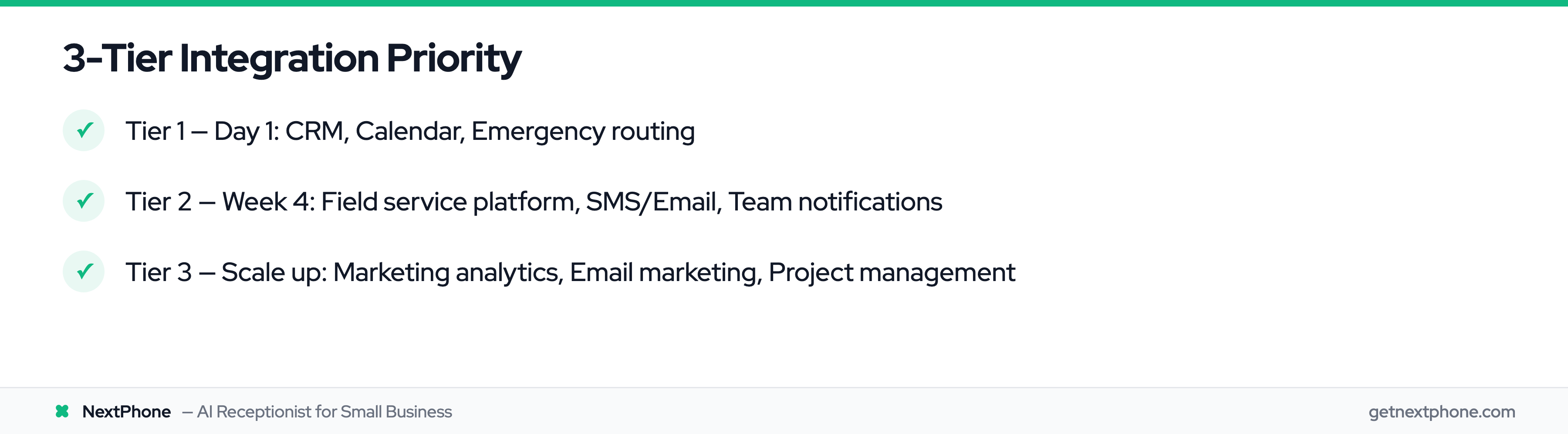
The 3-Tier Integration Approach
Not all integrations are equally important. We recommend a 3-tier approach:
Tier 1: Must-Have (Set up on Day 1)
These integrations deliver immediate ROI and prevent lead loss:
- CRM (HubSpot, Salesforce, or your industry platform)
- Calendar (Google Calendar, Outlook, or Calendly)
- Phone transfer/emergency routing
For most businesses, these three integrations capture 80% of the value. A lead calls, gets logged in your CRM, books an appointment on your calendar, or transfers to you if it's urgent. That's the core workflow.
Tier 2: High-Value (Add within 30 days)
These integrations increase efficiency and customer experience:
- Industry platform (Housecall Pro, Clio, ServiceTitan, etc.)
- Email/SMS follow-ups
- Team notifications (Slack, Teams, or email)
- Automation platform (Zapier for connecting other tools)
Tier 2 integrations aren't urgent, but they amplify your results. The CRM captures the lead; Slack notifies your sales team in real-time so they can respond faster. The calendar books the appointment; SMS sends an automatic reminder to reduce no-shows.
Tier 3: Nice-to-Have (Add as you scale)
These integrations provide incremental value but aren't essential:
- Marketing analytics (Facebook Conversions, Google Analytics)
- Email marketing (Mailchimp, Constant Contact)
- Project management (Asana, Trello)
- Advanced reporting and business intelligence
- Payment processing
Add these once your core integrations are running smoothly and you're ready to optimize specific workflows.
By Business Type: Recommended Integration Stacks
Different businesses have different priorities. Here's what we recommend:
Home Services Contractors (Plumbers, HVAC, Electricians, Roofers):
- Tier 1: Field service platform (Housecall Pro or Jobber) + Emergency routing + SMS
- Tier 2: Google Calendar + Simple CRM + Email notifications
- Tier 3: Marketing analytics + Email marketing
Why this order: Your field service platform IS your CRM, so that's Tier 1. Emergency routing captures high-value urgent calls. SMS keeps customers informed. Calendar and additional CRM come later once core operations are smooth.
Law Firms:
- Tier 1: Legal practice platform (Clio or MyCase) + Calendar + Phone transfer
- Tier 2: CRM for marketing/lead nurturing + Email automation + Conflict check integration
- Tier 3: Document automation + Payment processing
Why this order: Clio/MyCase handles client intake and matter management that's your foundation. Calendar books consultations. Phone transfer handles sensitive calls that need human touch. CRM for marketing comes later.
Medical Practices:
- Tier 1: Secure practice management system + Calendar + SMS reminders
- Tier 2: Patient portal integration + Insurance verification + Email notifications
- Tier 3: Telehealth integration + Marketing analytics
Why this order: Data security is non-negotiable, so you need a compliant practice management system from day one. Calendar reduces appointment booking phone tag. SMS reminders reduce costly no-shows.
- Tier 1: CRM (HubSpot or Salesforce) + Calendar + SMS/Email follow-ups
- Tier 2: MLS integration (if available) + Showing scheduler + Team notifications
- Tier 3: Marketing automation + Social media integration
Why this order: Real estate is all about lead nurturing, so CRM is Tier 1. Calendar books showings. SMS/Email keeps leads warm. Everything else is optimization.
Professional Services (Consultants, Agencies, B2B):
- Tier 1: CRM + Calendar + Zapier
- Tier 2: Slack/Teams notifications + Email automation + Proposal software integration
- Tier 3: Project management + Time tracking + Analytics
Why this order: CRM tracks leads, Calendar books meetings, Zapier connects everything else. Notifications keep your team responsive. Project management and time tracking come once you're consistently closing deals.
Integration Priority Matrix
Here's a simple framework: Score each potential integration on two factors:
Impact (1-10): How much revenue or time will this integration save/generate?
Effort (1-10): How difficult is the integration to set up? (1 = 30 mins, 10 = 2 weeks)
Calculate ROI score: Impact ÷ Effort
Prioritize integrations with the highest ROI scores.
Example:
- HubSpot CRM: Impact 10, Effort 2 → ROI 5.0 (high priority)
- Google Calendar: Impact 9, Effort 1 → ROI 9.0 (highest priority)
- Custom ServiceTitan API: Impact 10, Effort 8 → ROI 1.25 (lower priority, tackle later)
- Mailchimp email list: Impact 4, Effort 3 → ROI 1.33 (Tier 3)
Start with the highest ROI integrations, not the most impressive ones.