Why Calendar Integration Matters for Phone Systems
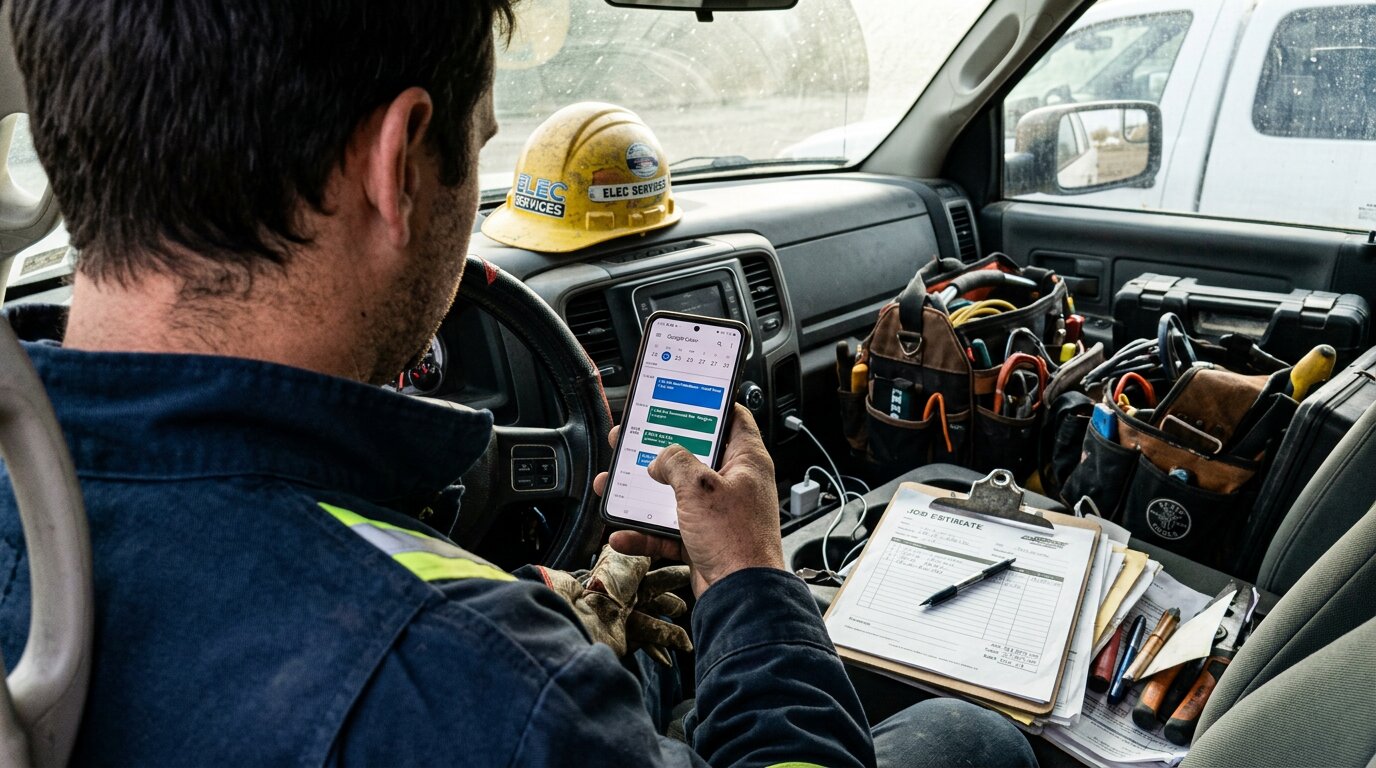
Your phone rings. A customer needs to schedule an estimate. You're on a roof installing shingles, hands full, can't answer. The call goes to voicemail. They call the next contractor. You just lost a $4,500 job.
This happens more than you think.
The Cost of Missed Scheduling Calls
Across the 1,446,980 business calls in our analysis, booking or rescheduling an appointment is the single most common reason people call home services contractors. Every one of those is a booking opportunity, and industry research shows 74.1% of calls go completely unanswered.
For a contractor receiving 42 calls per month, that's a handful of scheduling calls monthly. If three-quarters go to voicemail, you're missing 2-3 bookings every single month. At an average job value of $3,500, that's $10,500 in monthly revenue walking out the door.
The broader impact is staggering. Missed appointments cost businesses an average of $200 per hour in lost productivity. In healthcare alone, providers lose about $150 billion annually from missed appointments.
The Double-Booking Problem
But answering the phone isn't enough. You also need to know when you're actually available.
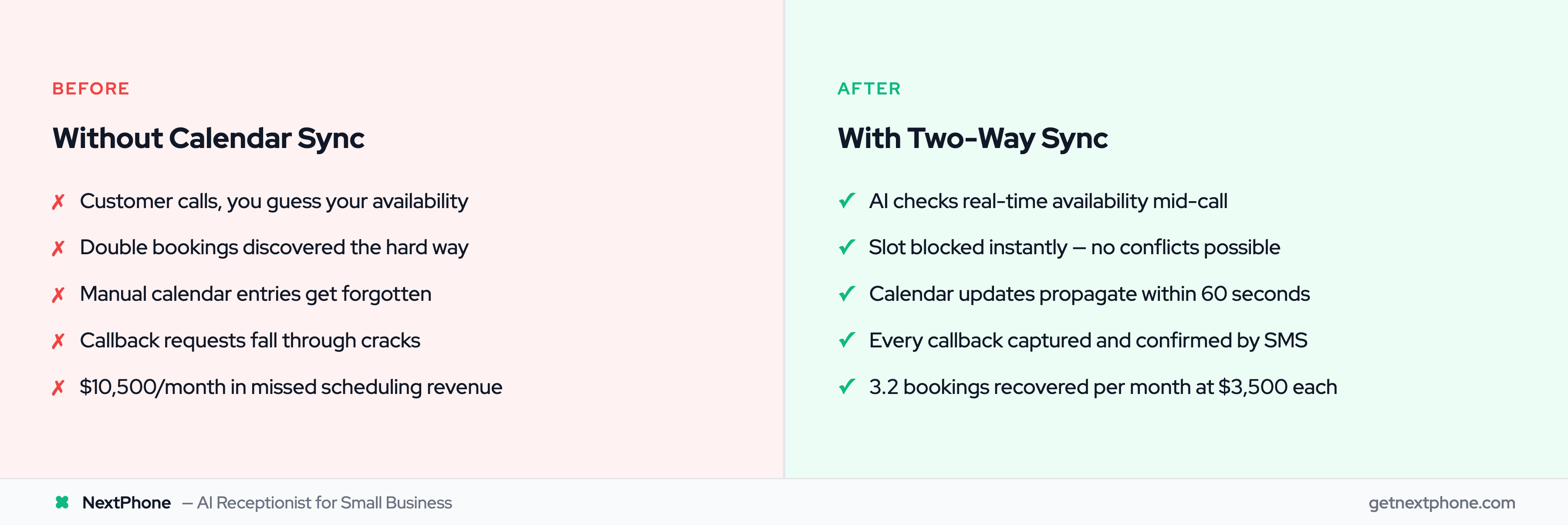
Without calendar integration, here's what happens: A customer calls Monday morning wanting an appointment. You think you're free Wednesday at 2pm, so you book it. Later that day, someone else calls. You forget about the first appointment and book them for Wednesday at 2pm too. Now you've got two customers expecting you at the same time.
One of them gets bumped. They're frustrated. You look unprofessional. Sometimes you lose the customer entirely.
Manual Scheduling Doesn't Scale
Approximately one in four callers explicitly asks for a callback. Without a systematic tracking system, most of these callback requests fall through the cracks.
You write the number on a scrap of paper. It gets lost. You meant to call them back after lunch. You forgot. They've already hired someone else.
Calendar integration solves all three problems: missed calls, double bookings, and forgotten callbacks.
How Google Calendar Sync Works
Google Calendar has 500M+ users, making it the most popular calendar worldwide, with 95% of G Suite businesses relying on it. Calendar sync connects your Google Calendar to your phone system so they can share information automatically.
What Is Calendar Sync?
At its core, calendar sync keeps two systems updated with the same information. When you add an appointment to your calendar, it appears in your phone system. When your AI receptionist books an appointment during a call, it shows up in your Google Calendar.
No manual data entry. No copying information from one place to another. Google Calendar's "Find a Time" feature alone saves 2M+ hours daily, with an 88% user retention rate after one year. Everything stays synchronized automatically.
One-Way Sync vs Two-Way Sync
There are two types of calendar sync, and the difference matters.
One-way sync means updates flow in only one direction. For example, appointments booked through your phone system appear in Google Calendar, but changes you make in Google Calendar don't update the phone system.
Two-way sync means changes update in both directions. Book an appointment in Google Calendar? Your phone system knows immediately. AI books during a call? Shows up in your calendar instantly.
For phone systems, two-way sync is essential. Here's why: You might manually add appointments from in-person meetings, website bookings, or referrals. Your AI receptionist needs to know about ALL of these to prevent double bookings.
Real-time synchronization is the key to preventing scheduling conflicts across all booking channels.
How the Google Calendar API Works (Simplified)
The Google Calendar API allows apps to read and write calendar events. It's the technical bridge that makes sync possible.
Here's what happens behind the scenes:
When a customer calls, your AI receptionist sends a request to Google Calendar: "Show me all appointments for this week." Google Calendar responds with the data. The AI identifies available time slots and offers them to the customer. When the customer confirms, the AI sends another request: "Create new appointment for Wednesday at 2pm." Google Calendar creates the event.
All of this happens in under 3 seconds, fast enough to complete while the customer is still on the phone.
| Feature | One-Way Sync | Two-Way Sync |
|---|---|---|
| Phone system → Calendar | ✓ Yes | ✓ Yes |
| Calendar → Phone system | ✗ No | ✓ Yes |
| Prevents double bookings | Partial | ✓ Complete |
| Manual updates reflected | ✗ No | ✓ Yes |
| Best for | Simple logging | Active scheduling |
Real-Time Calendar Access During Live Calls
This is where calendar integration gets powerful: Your AI receptionist checks your calendar WHILE talking to the customer.
How AI Checks Availability Mid-Conversation
Traditional answering services handle scheduling like this:
"I'll have someone call you back to schedule."
That callback might happen hours later. Or never. The customer might have already moved on to the next contractor.
An AI-powered phone system with calendar access handles it differently:
"Let me check their availability right now... They have openings tomorrow at 1pm or Friday at 9am. Which works better for you?"
The AI queries your calendar in real-time, identifies available slots, and offers them immediately. The conversation continues naturally while the calendar check happens in the background.
Offering Alternative Time Slots Instantly
Here's a real scenario:
A customer calls your electrical contracting business at 2:15pm. They need an estimate and ask if you can come out tomorrow.
Your AI checks your calendar. Tomorrow is fully booked. But Thursday has three openings: 9am, 1pm, and 4pm.
The AI responds: "Tomorrow's completely booked, but I can get you in Thursday morning at 9am, Thursday afternoon at 1pm, or Thursday evening at 4pm. Do any of those work?"
The customer chooses Thursday at 1pm. Done.
Without calendar integration, this requires a callback. With integration, it's handled in one call.
Confirming and Blocking Time in Real-Time
The moment your customer confirms the appointment, two things happen simultaneously:
First, the time slot gets blocked in your Google Calendar. It appears as a scheduled appointment with the customer's name, phone number, and service details.
Second, the AI sends a confirmation. Depending on your settings, this might be an SMS text message, an email, or both.
If another customer calls 30 seconds later asking for that same time slot, your AI already knows it's unavailable. It offers the next available opening instead.
This prevents the double-booking problem completely. Every booking channel (phone calls, website forms, in-person scheduling) updates the same calendar in real-time.
Automated reminder systems that integrate with calendars have been shown to lower missed appointments by nearly 38%.
OAuth Setup: Connecting Google Calendar
OAuth is how you securely connect Google Calendar to your AI phone system without sharing your password.
What Is OAuth and Why You Need It
OAuth stands for "Open Authorization." It's a security protocol that lets apps access your data without ever seeing your password.
Here's how it works: Instead of giving your phone system your Google password, you tell Google "I authorize this app to access my calendar." Google gives the app a special access token. The app uses that token to read and write calendar events.
You control exactly what the app can access. You can revoke access anytime from your Google account settings.
This is much safer than sharing passwords. If you ever want to disconnect the integration, you just revoke the token. Your password never changed, so nothing else is affected.
Step-by-Step: Creating OAuth Credentials
This sounds technical, but it's actually just clicking through a few screens. The whole process takes about 10 minutes.
Step 1: Go to the Google Cloud Console
Step 2: Create a new project (or select an existing one if you already have one)
Step 3: In the sidebar, click "APIs & Services" then "Library"
Step 4: Search for "Google Calendar API" and click "Enable"
Step 5: Go to "APIs & Services" then "OAuth consent screen"
Step 6: Choose "External" user type (unless you're using Google Workspace, then choose "Internal")
Step 7: Fill in the app name (you can call it "[Your Business Name] Calendar Integration"), your email, and save
Step 8: Go to "Credentials" in the sidebar
Step 9: Click "Create Credentials" and select "OAuth 2.0 Client ID"
Step 10: Choose "Web application" as the application type
Step 11: Add authorized redirect URLs (your phone system provider will give you this URL)
Step 12: Click "Create"
Step 13: Copy your Client ID and Client Secret (you'll need these for the next step)
Most AI phone system platforms provide detailed instructions for where to paste these credentials in their settings. With NextPhone, you simply navigate to Integrations → Google Calendar → Paste credentials → Authorize.
Authorizing Calendar Access
After you've entered your OAuth credentials, you'll click an "Authorize" button. This opens a Google login screen.
Sign in with the Google account that has the calendar you want to sync. Google will show you exactly what permissions the app is requesting. Usually it's:
- View events on all your calendars
- Edit events on all your calendars
- Create new events
Click "Allow." Google generates your access token and sends it to the phone system. From this point forward, the two systems are connected.
Testing Your Connection
Before you go live, test the integration.
Most platforms include a test function. Create a test appointment through the system. Check your Google Calendar. The appointment should appear within 60 seconds.
Then do the reverse: Manually add an event to Google Calendar. Check if your phone system recognizes it as a blocked time slot.
If both tests pass, you're good to go.
Preventing Double Bookings
Two-way sync prevents double bookings through continuous, real-time availability checks.
How Two-Way Sync Prevents Conflicts
Every time a booking request comes in (whether from a phone call, website form, or in-person scheduling), the system checks Google Calendar first.
Is that time slot open? Book it and block it immediately.
Is that time slot already occupied? Offer the next available opening.
Because the sync is two-way, manual calendar changes appear in the phone system within 60 seconds. If you add an appointment to Google Calendar while you're at the supply store, your AI receptionist knows about it by the time you get back to your truck.
Google Calendar even has a feature that automatically rejects conflicting invitations when you enable the "Auto-accept invitations that do not conflict" setting.
Real-Time Availability Checks
Here's where real-time sync makes the difference:
Customer A calls at 2:15pm. They want a 3pm appointment today. Your AI checks the calendar, sees the slot is open, and books it. The calendar updates immediately.
Customer B calls at 2:20pm. They also want 3pm today. Your AI checks the calendar and sees it's now blocked. It offers 4pm or tomorrow at 9am instead.
Without real-time sync, both bookings might go through. You'd discover the double booking later when you check your schedule.
Booking Buffers and Travel Time
Smart appointment buffers add another layer of protection.
Most contractors need travel time between jobs. If you're installing a water heater across town, you can't start the next job five minutes later.
Calendar integration lets you add automatic buffers. After each appointment, the system blocks an additional 30-60 minutes for travel and prep time.
You can also set business hours. Even if your calendar is technically open at 7am, you might not want to take appointments before 8am. The system respects these boundaries.
Some contractors block lunch hours or certain days of the week. The integration honors all these rules automatically.
