Why Your Microsoft 365 Business Is Losing Appointments
You're on a Teams call with a client. Your Outlook calendar is perfectly organized. Your SharePoint documents are in order. And your phone just rang three times before going to voicemail.
That was a potential customer asking about your services. They wanted to schedule an appointment. Instead, they're now calling your competitor.
Here's the frustrating part: you've already invested in Microsoft 365. You have all the tools for modern business communication. But nobody's answering the phone.
Industry research shows 74.1% of business calls go completely unanswered. Even more telling - booking or rescheduling an appointment is the single most common reason people call. That's customers actively trying to give you business, reaching voicemail instead.
This guide shows you how to connect an AI receptionist to your Outlook calendar so you never miss another appointment request. We'll cover the technical setup, two-way sync mechanics, Teams integration, and the actual ROI you can expect.
Why Microsoft 365 Users Still Miss Appointment Requests
The Irony of Modern Business Communication
You pay for Microsoft 365. You've got Teams for video calls, Outlook for email and calendar, SharePoint for files, and maybe even Microsoft Bookings for self-service scheduling.
Yet when the phone rings, nothing happens automatically.
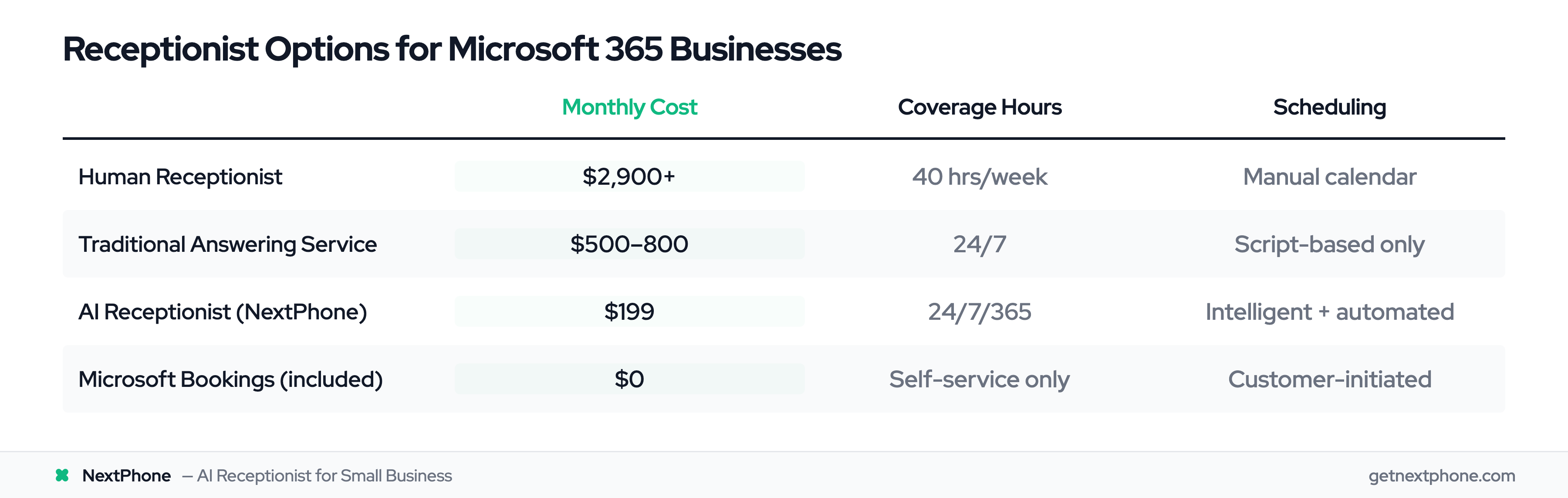
According to DataStudios research on Microsoft 365 adoption, 74% of Microsoft 365 users are small businesses with fewer than 50 employees. These businesses can't afford a full-time receptionist at $35,000+ per year. So calls go to voicemail.
Microsoft Bookings exists, but it requires customers to visit a webpage and book themselves. Many customers - especially older demographics and those with urgent needs - still prefer to call.
What Happens When Scheduling Calls Go Unanswered
Industry research found that 85% of callers won't call back if their first call goes unanswered. They don't leave a message. They don't try again later. They call someone else.
For service businesses, a missed scheduling call means:
- Lost revenue (average service call: $3,500 per project)
- Wasted marketing spend (you paid to make them aware of you)
- A competitor winning that customer for life
The financial impact adds up fast. A typical business receiving 42 calls per month loses 31 of them to voicemail. If even three of those are scheduling requests that would have converted, that's $10,500 per month walking out the door.
The Gap Microsoft Doesn't Fill
Microsoft 365 is excellent at many things. Intelligent phone answering isn't one of them.
- Microsoft Bookings: Self-service only. Requires customer to take action.
- Teams Phone System: Great for making and receiving calls. No intelligent answering.
- Copilot: Helps with emails and documents. Doesn't answer your phone.
The missing piece is an AI receptionist that picks up calls, understands what callers need, checks your Outlook calendar, and books appointments - all without human intervention.
That's exactly what connecting an AI receptionist to your Microsoft 365 setup provides.
How AI Receptionists Connect to Your Outlook Calendar
Understanding how the pieces fit together helps you set up a reliable integration. Let's break down the architecture.
The Integration Architecture
Most Outlook calendar AI receptionist setups work through a three-part chain:
- AI Receptionist: Answers calls, talks to customers, identifies scheduling requests
- Scheduling Platform: Acts as the bridge between AI and calendar (Calendly, Cal.com, etc.)
- Outlook Calendar: Your actual business calendar where appointments live
When a customer calls, the AI receptionist handles the conversation. When they request an appointment, the AI queries the scheduling platform. That platform checks Outlook availability in real-time and returns open slots. The customer picks a time, and the appointment lands in Outlook.
What Two-Way Sync Actually Means
Two-way sync is the feature that makes this integration actually useful.
One-way sync means the scheduling platform reads your Outlook calendar. It can see when you're busy but can't write new appointments back.
Two-way sync means:
- Changes in Outlook immediately reflect in your scheduling availability
- Appointments booked through AI appear in Outlook within minutes
- Cancellations or reschedules update both systems
Without two-way sync, you risk double-bookings. A customer might call and book a slot that someone just filled through Outlook. Two-way sync eliminates this problem.
The Booking Flow in Action
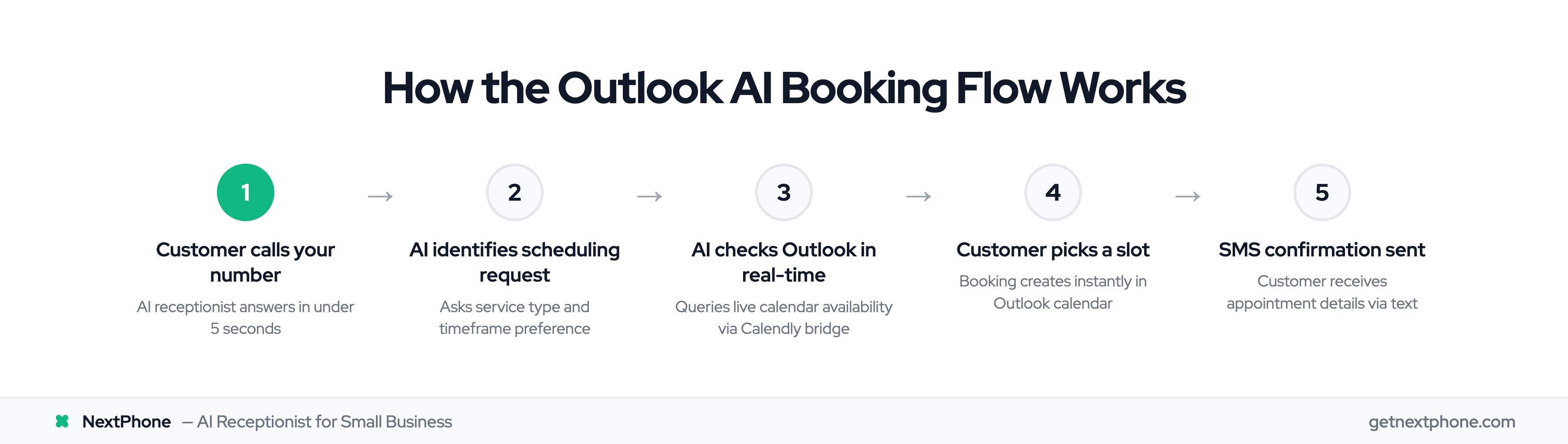
Here's what happens when a customer calls a business using an Outlook calendar AI receptionist integration:
- Customer dials your business number
- AI receptionist answers in under 5 seconds (no hold music, no "press 1")
- Customer explains they want to schedule an appointment
- AI asks relevant questions: what type of service, general timeframe preference
- AI checks real-time Outlook availability through the scheduling bridge
- AI offers available time slots: "I have openings Tuesday at 2pm or Wednesday at 10am"
- Customer confirms their preferred time
- Booking creates instantly in Outlook calendar
- Customer receives SMS confirmation with appointment details
The entire process takes under two minutes. No human touched it. And your calendar now has a new appointment.
Microsoft Graph API: The Technical Foundation
For those curious about what's happening behind the scenes: most integrations leverage the Microsoft Graph API, which is Microsoft's unified interface for accessing 365 data.
Scheduling platforms like Calendly connect to Graph API to read and write calendar events. This is more reliable than older methods and works across Outlook desktop, web, and mobile simultaneously.
Some enterprise setups use direct HTTP webhooks to Microsoft Graph, bypassing the scheduling platform entirely. We'll cover that advanced option later.
Two-Way Calendar Sync: Preventing Double-Bookings
Two-way sync sounds simple, but the details matter. Here's how it actually works and what you need to know.
How Changes Propagate Between Systems
When you block time in Outlook - say, you add a dentist appointment - that change needs to reach your AI receptionist's availability data.
Most integrations handle this through polling or webhooks:
- Polling: The scheduling platform checks Outlook every few minutes for changes
- Webhooks: Outlook notifies the scheduling platform immediately when changes occur
Webhook-based systems are faster, typically syncing within 30 seconds. Polling systems might have a 1-5 minute delay. Both work fine for most businesses.
Conflict resolution follows a simple rule: if a time slot is marked busy anywhere, it's unavailable everywhere. Your Outlook calendar is the source of truth.
What Gets Synced
A proper two-way integration syncs:
- Date and time of the appointment
- Customer name (from the call conversation)
- Contact information (phone, email if provided)
- Service type (what the appointment is for)
- Duration (how long to block)
- Notes (relevant details from the AI conversation)
Some integrations also include:
- Customer's preferred contact method
- How they heard about you
- Specific questions or concerns mentioned
This information flows into your Outlook appointment, giving you context before you meet with the customer.
Handling Edge Cases
What if someone books directly in Outlook?
No problem. Two-way sync picks up that blocked time and removes it from availability. The AI won't offer it to callers.
What if a customer calls to reschedule?
The AI can look up existing appointments by phone number, present available alternatives, and move the booking. Outlook updates automatically.
What about cancellations?
When an appointment is cancelled (through the AI, scheduling platform, or directly in Outlook), that time becomes available again across all systems.
Research shows that self-scheduling reduces no-shows by 29%. AI-assisted booking has similar benefits because customers choose times that actually work for them.
Step-by-Step: Connect Your AI Receptionist to Outlook
Let's get practical. Here's how to set up the integration.
Prerequisites
Before you start, confirm you have:
- Microsoft 365 Business Standard or higher (Outlook calendar access required)
- Calendar sharing permissions enabled for your account
- An AI receptionist account (like NextPhone)
- A Calendly account (free tier works for basic setup)
If your organization has IT policies restricting third-party calendar access, you may need admin approval.
Method 1: Calendly Bridge (Recommended)
This method works for most businesses and requires no coding.
Step 1: Create and connect your Calendly account
Sign up at Calendly.com. During setup, choose to connect your Microsoft account. Authorize Calendly to access your Outlook calendar.
Step 2: Configure availability settings
In Calendly, set:
- Your working hours
- Buffer time between appointments (recommend 15-30 minutes)
- How far in advance customers can book
- Minimum notice required
Step 3: Create event types
Set up the appointment types you offer. For each type, specify:
- Duration (30 minutes, 1 hour, etc.)
- What information to collect (name, email, phone)
- Confirmation message
Step 4: Get your booking URL
Calendly gives you a unique URL for your scheduling page. Copy this - you'll need it for the AI configuration.
Step 5: Connect to your AI receptionist
In NextPhone (or your AI receptionist platform):
- Navigate to integrations settings
- Add Calendly as a calendar integration
- Paste your booking URL
- Configure what triggers scheduling (caller says "appointment," "schedule," "book," etc.)
Step 6: Test the integration
Call your AI receptionist number and request an appointment. Confirm:
- AI offers correct available times
- Booking appears in Outlook calendar
- Confirmation SMS sends successfully
The whole setup takes about 20-30 minutes.
Method 2: Direct HTTP Webhook (Advanced)
For businesses needing custom workflows - like routing to specific staff calendars based on service type - direct integration offers more control.
This method requires:
- Microsoft Azure app registration
- Graph API credentials
- HTTP webhook configuration in your AI platform
Unless you have specific needs that Calendly can't meet, the bridge method is simpler and equally reliable.
Configuration Best Practices
A few tips from businesses that have done this well:
Set realistic buffer times. Back-to-back appointments lead to running late. 15-minute buffers give you breathing room.
Configure smart defaults. If most appointments are 30 minutes, make that the default. The AI can adjust for exceptions.
Enable SMS confirmations. Automated reminders reduce no-shows by 30-45% according to My AI Front Desk research.
Set up email notifications. Get an alert when appointments book so you can prepare.