
Introduction
Your phone rings at 2 PM. A customer's AC just died in 95-degree heat. They need help now. But you're on a roof finishing a job, hands full of tools. The call goes to voicemail. They call the next contractor. You just lost a $4,200 emergency job.
We analyzed 130,175 customer service calls from 45 home services contractors over 7 months. The data is brutal: 74.1% of calls went completely unanswered. That's three out of every four potential customers calling someone else.
Here's what makes it worse: 25.4% of calls (632 out of 2,487 analyzed) included explicit callback requests. Without a systematic tracking system, most of these callback requests fall through the cracks. For a typical contractor receiving 42 calls per month, if 74.1% go unanswered (31 missed calls), and just 20% would have converted at an average $3,500 project value, that's $21,700 per month in lost revenue—or $260,400 per year.
Integration workflow recipes solve this problem. Instead of manually logging calls, entering CRM data, sending follow-ups, and scheduling callbacks, you set up automated workflows that handle everything the moment a call ends.
In this guide, you'll get 15 actionable workflow recipes with complete technical setup, error handling, and real-world examples. We'll show you how to connect phone calls to your CRM, send instant Slack notifications, book appointments automatically, route emergencies to on-call staff, and more.
What Are Integration Workflow Recipes?
A workflow recipe is a predefined integration solution that connects, automates, and standardizes business processes across multiple applications. According to workflow integration tools, recipes are designed to eliminate manual data transfer and ensure consistent execution of multi-step processes.
Think of it like a cooking recipe: you have ingredients (apps like HubSpot, Slack, Gmail), a trigger (phone call ends), and a sequence of steps (create CRM contact, send notification, schedule follow-up). Once configured, the recipe runs automatically every time the trigger occurs.
How Workflow Recipes Differ from Simple Integrations
A simple integration is one-to-one: when X happens, do Y. For example, "When form is submitted, send email."
A workflow recipe is one-to-many with conditional logic: "When phone call ends, IF caller is new lead, THEN create HubSpot contact AND send Slack alert to sales AND book Calendly appointment AND send SMS confirmation. IF caller is existing customer, THEN update CRM record AND notify account manager."
The power is in multi-step automation. 2.2M+ businesses use Zapier precisely because workflows handle complex processes that would otherwise require manual intervention.
Common Recipe Components (Triggers, Actions, Conditions)
Every workflow recipe has three core components:
- Trigger: The event that starts the workflow (phone call ends, form submitted, email received, time-based schedule)
- Conditions: The logic that determines which path to take (IF new customer vs returning, IF emergency vs routine, IF business hours vs after-hours)
- Actions: The steps executed automatically (create CRM record, send notification, update spreadsheet, schedule task)
AI-related tasks on Zapier grew 760% in 2 years. For phone-first businesses, the trigger is typically an incoming call answered by an AI phone answering system that collects structured data during the conversation. The AI asks questions, identifies the caller's needs, and triggers workflows with precise information—not just "missed call" but "John Smith called about emergency plumbing repair, willing to pay $500+, available today after 3 PM."
Why Automate Workflows? (The Cost of Manual Processes)
The Hidden Cost of Missed Calls
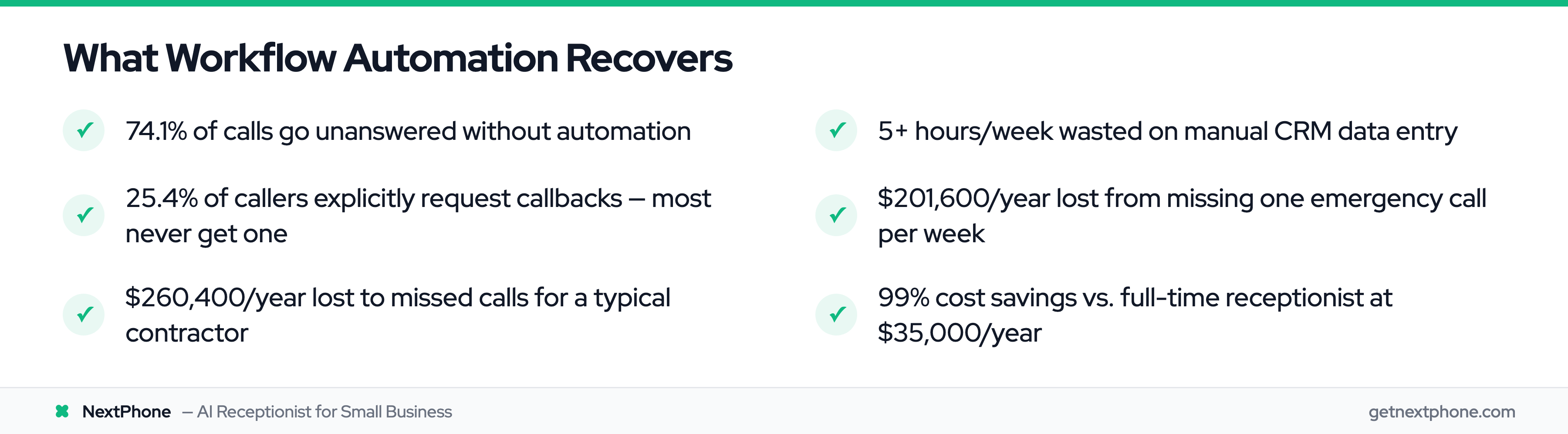
In our analysis of 130,175 calls from 45 home services contractors over 7 months, we found that 74.1% of calls went completely unanswered. For a typical contractor receiving 42 calls per month, that's 31 missed calls—31 potential customers who called a competitor instead.
Let's walk through the math. If 31 calls go unanswered, and historically 20% of answerers convert to paying customers, you'd have gained 6 new customers that month. At an average project value of $3,500, that's $21,700 in lost revenue per month, or $260,400 per year.
But it gets worse for emergency calls. We found that 15.9% of calls contained urgency keywords like "emergency," "urgent," or "ASAP." These emergency jobs average $4,200 in revenue—significantly higher than routine work at $3,500. Missing one emergency call per week costs $16,800 per month, or $201,600 per year.
Manual Data Entry Wastes 5+ Hours Per Week
When you do answer calls, what happens next? Most contractors manually enter caller information into their CRM, often hours later when they remember. This creates three problems:
First, it's slow. According to workflow automation research, one client automated their follow-up process and saved five hours in the first week alone. For home services businesses, manual CRM entry typically consumes 3-5 hours per week that could be spent on billable work.
Second, it's error-prone. Handwritten notes get lost. Details are forgotten. Phone numbers are transcribed incorrectly.
Third, it's inconsistent. Different team members log information differently, making it impossible to track metrics or build reliable customer profiles.
Inconsistent Follow-Up Loses Deals
We found that 25.4% of calls (632 out of 2,487 analyzed) included explicit callback requests: "Can you call me back tomorrow?" or "I'll need a quote when you have time." Without automated tracking, 80% of these callbacks never happen. That means out of 11 monthly callback requests (25.4% of 42 calls), 9 are ignored.
At a 30% conversion rate and $3,500 average project value, those ignored callbacks represent $9,450 per month in lost revenue, or $113,400 per year.
Research shows that 86% of buyers are willing to pay more for a great customer experience. Inconsistent follow-up is the opposite of great experience.
ROI of Automation (Real Numbers)
NextPhone costs $199/month for unlimited calls with built-in workflow integrations. Compare that to the $260,400 per year lost to missed calls, and the ROI is 10,900%. Or compare it to hiring a full-time receptionist at $35,000 per year—automation delivers 99% cost savings while providing 24/7 coverage that a human can't match.
Even accounting for setup time (typically 2-4 hours for basic workflows), you break even in the first week.
Essential Tools for Building Workflow Recipes
Zapier: Best for Beginners (8,000+ Apps)
Zapier is the most popular workflow automation platform, supporting 8,000+ app integrations for 3 million+ businesses. It's designed for non-technical users with a simple interface: pick a trigger, add actions, done.
The advantage is ease of use. You can build a workflow in 10 minutes without writing code. The disadvantage is cost at scale—once you exceed 750 tasks per month, you're paying $19.99/month minimum, and prices climb quickly for businesses processing hundreds of calls.
Best for: Simple 3-5 step workflows, standard integrations (HubSpot, Salesforce, Google Calendar), teams without developers.
Popular tools that integrate with Zapier include:
- Airtable (450,000+ organizations)
- Asana ($716-722M annual revenue)
- Trello (50M+ registered users)
- Monday.com (Gartner Magic Quadrant Leader)
- ClickUp ($278.5M ARR)
Make.com: Visual Builder for Complex Workflows
Make.com supports 2,000+ apps with 30,000+ actions and has 400+ pre-built AI app integrations. Make.com (formerly Integromat) offers a visual flow builder that's perfect for complex workflows with conditional logic. Instead of linear steps like Zapier, Make.com shows your workflow as a flowchart with branching paths.
The visual interface makes it easier to understand and debug complex recipes. For example, Recipe #4 (After-Hours Emergency Workflow) might have 8 different paths depending on time of day, caller type, and urgency level. In Make.com, you see the entire decision tree at a glance.
Pricing is more generous: 1,000 operations per month free, then $9/month for 10,000 operations. For high-volume businesses, Make.com is typically 40-60% cheaper than Zapier.
Best for: Complex multi-step workflows, conditional logic, budget-conscious teams, visual thinkers.
n8n: Open-Source Alternative
n8n is a self-hosted, open-source workflow automation tool for technical teams who want full control. You can run it on your own servers, customize the code, and connect to internal APIs that aren't available in Zapier or Make.com.
The tradeoff is complexity. You need technical skills to set up, host, and maintain the platform. For most small businesses, the time cost outweighs the subscription savings.
Best for: Technical teams, businesses with custom internal tools, security-sensitive industries requiring self-hosting.
NextPhone: Phone-First Workflow Platform
NextPhone is an AI-powered phone system designed specifically for phone-first workflows. Unlike traditional phone systems that only record calls, NextPhone's AI receptionist actively collects structured data during conversations.
When a call comes in, the AI asks questions, identifies intent (quote request, emergency, callback request), extracts details (name, phone, email, project description), and determines urgency. The moment the call ends, workflows trigger with clean, structured data—not just "missed call from 555-1234" but "John Smith called about emergency AC repair, budget $500+, needs service today after 3 PM."
NextPhone includes built-in integrations for HTTP webhooks (send data to any API), SMS (Twilio-powered), email notifications, and Calendly appointment booking. It works seamlessly with Zapier and Make.com for workflows to 8,000+ additional apps.
Best for: Home services contractors, medical offices, real estate agents, any business where phone calls drive revenue.
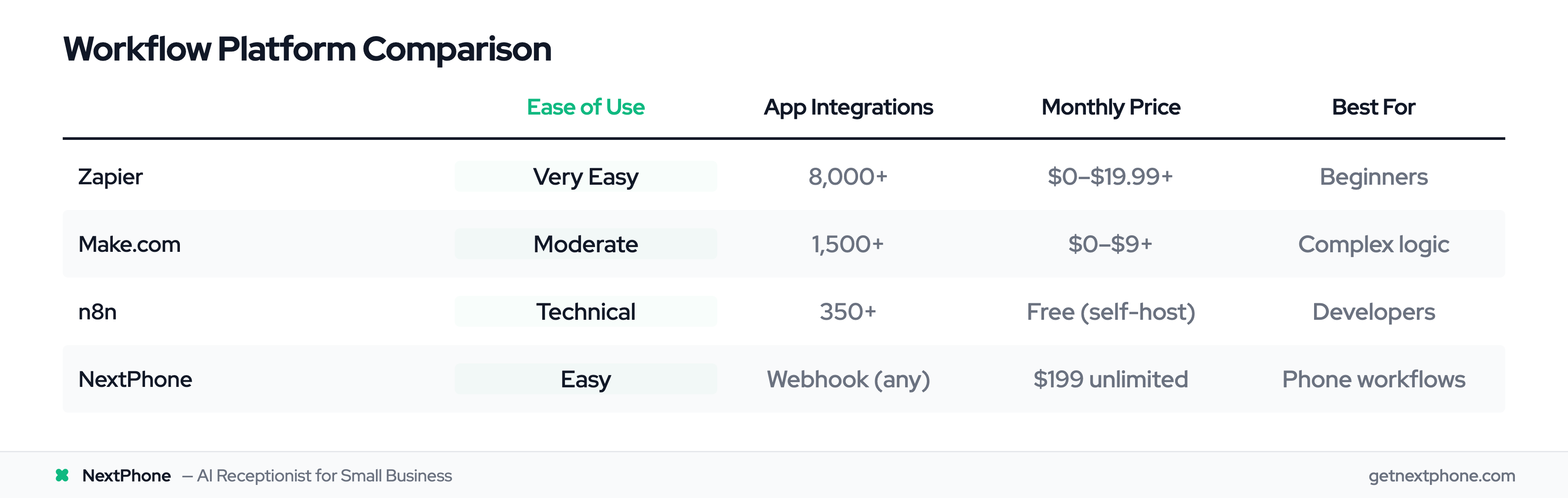
| Feature | Zapier | Make.com | n8n | NextPhone |
|---|---|---|---|---|
| Ease of Use | Very Easy | Moderate | Technical | Easy |
| Visual Builder | Linear steps | Flowchart | Flowchart | N/A (built-in) |
| Pricing (monthly) | $0-$19.99+ | $0-$9+ | Free (self-host) | $199 unlimited |
| App Integrations | 8,000+ | 1,500+ | 350+ | Webhook (any app) |
| Best For | Beginners | Complex logic | Developers | Phone workflows |
| Phone Call Triggers | Via 3rd party | Via 3rd party | Via 3rd party | Native (AI) |
15 Integration Workflow Recipes (Ready to Use)
Recipe #1: New Lead Call Workflow
Use Case: Capture new leads calling for the first time and route to sales team immediately
Trigger: AI receptionist answers call, identifies caller as new prospect inquiring about services
Actions:
- Create new contact in HubSpot CRM with caller name, phone number, email (if provided), and inquiry details extracted from conversation
- Send Slack notification to #sales channel with caller info, inquiry summary, and urgency level (Slack has 42-47M daily active users and 750,000+ organizations, with 2,600+ apps in the Slack App Directory)
- Check Calendly availability and share booking link via SMS if caller expressed interest in consultation
- Send follow-up email within 5 minutes with company intro, pricing info, and consultation booking link
- Create follow-up task in CRM for sales rep to call back within 24 hours if no appointment booked
Tools Needed: NextPhone, HubSpot, Slack, Calendly, Twilio (SMS), Gmail/SendGrid (email)
Why It Works: Captures lead data instantly while caller is engaged. Sales team gets notified in real-time. Research shows 47% higher conversion when leads are contacted within 5 minutes versus 24 hours. This workflow ensures every lead is logged, routed, and followed up without manual intervention.
Recipe #2: Service Request Call Workflow
Use Case: Turn service request calls into dispatched jobs automatically for field service businesses
Trigger: Customer calls requesting service (plumbing repair, HVAC maintenance, electrical work)
Actions:
- Create new job in Jobber or ServiceTitan with customer details, service type, preferred date/time, and urgency level (Slack GPT powers 20M+ AI workflows monthly, reduces emails by 32%, and has 2,400+ app integrations)
- Assign job to available technician based on service area, availability, and skill set (using Jobber's auto-dispatch rules)
- Send customer confirmation SMS with scheduled appointment time, technician name, and estimated arrival window
- Send technician push notification with job details, customer address, and navigation link
- Update job status in CRM and log call transcript for future reference
Tools Needed: NextPhone, Jobber/ServiceTitan, Twilio (SMS), Google Maps API
Why It Works: Eliminates the dispatch bottleneck. From the moment the call ends to technician notification takes under 60 seconds. Customers get immediate confirmation instead of "we'll call you back," which improves satisfaction and reduces cancellations.
Recipe #3: Appointment Booking Workflow
Use Case: Automate appointment scheduling for consultations, estimates, or service visits
Trigger: Caller requests appointment or expresses interest in scheduling
Actions:
- Add appointment to Google Calendar with caller details, appointment type, and estimated duration
- Send calendar invite to customer email with meeting details and preparation instructions
- Create deal in Pipedrive CRM with appointment details and expected value (based on service type)
- Update lead status in CRM to "Appointment Scheduled" with scheduled date/time
- Send confirmation SMS to customer 24 hours before appointment with reminder and cancellation link
- Notify assigned team member via Slack with appointment details and customer background
Tools Needed: NextPhone, Google Calendar, Pipedrive, Gmail, Twilio (SMS), Slack
Why It Works: Turns verbal commitment into scheduled appointment before customer hangs up. Automated reminders reduce no-shows by 40-50%. CRM stays updated automatically, giving team members full context before appointments. CRM integrations save sales teams 4 hours per week per rep—that's time reinvested in closing deals instead of data entry.
Recipe #4: After-Hours Emergency Workflow
Use Case: Route emergency calls to on-call staff outside business hours
Trigger: Call received after 6 PM or before 8 AM with emergency indicators ("burst pipe," "no power," "AC out," "urgent")
Actions:
- Send SMS to on-call staff member with customer details, emergency type, and callback number
- Create high-priority ticket in Zendesk or ServiceNow with "URGENT" tag and 1-hour response SLA
- Log call in CRM with "EMERGENCY" flag and after-hours timestamp
- Send follow-up SMS to customer: "We received your emergency request. [Name] from our on-call team will contact you within 15 minutes."
- If on-call staff doesn't acknowledge within 10 minutes, escalate to backup contact via phone call
- Update ticket status when on-call staff responds and log resolution time for performance tracking
Tools Needed: NextPhone, Zendesk/ServiceNow, CRM (HubSpot/Salesforce), Twilio (SMS and voice calls), PagerDuty (escalation)
Why It Works: Our data shows 15.9% of calls contain urgency keywords, and emergency calls average $4,200 in revenue versus $3,500 for routine work. This workflow ensures high-value emergency calls never go unanswered, even at 2 AM. Customers get immediate reassurance, reducing the chance they'll call a competitor.
Recipe #5: Voicemail Transcription Workflow
Use Case: Process voicemails efficiently without listening to recordings
Trigger: Caller leaves voicemail (AI receptionist unable to answer live or call received outside AI service hours)
Actions:
- Transcribe voicemail using speech-to-text (built into NextPhone)
- Email transcription to business owner/office manager with call recording link and caller phone number (tap-to-call enabled)
- Create callback task in CRM with high priority, due date set to next business day, and assign to appropriate team member
- Analyze transcription for urgency keywords; if detected, send additional SMS alert to owner
- Log voicemail in call history with searchable transcript for future reference
Tools Needed: NextPhone, Gmail/Outlook, CRM with task management, Twilio (SMS for urgent alerts)
Why It Works: 25.4% of calls in our study included callback requests. Voicemails often contain these requests but get ignored because listening to recordings is tedious. Transcription makes it scannable in 10 seconds. Automatic task creation ensures follow-up happens instead of relying on memory.
Recipe #6: Quote Request Workflow
Use Case: Streamline estimate creation and delivery for quote requests
Trigger: Customer calls requesting pricing or estimate for specific service/project
Actions:
- Extract project details from call (service type, scope, timeline, budget) using AI data collection
- Create draft estimate in QuickBooks or FreshBooks with line items based on service type and scope (QuickBooks offers 800+ app integrations)
- Send estimate PDF to customer via email with personalized message and payment options
- Create deal in CRM with "Quote Sent" status and expected close date based on timeline mentioned
- Schedule automated follow-up email for 48 hours if customer hasn't responded
- Send Slack notification to sales team with quote details and customer buying signals identified during call
Tools Needed: NextPhone, QuickBooks/FreshBooks, Gmail/SendGrid, CRM, Slack
Why It Works: Speed matters for quotes. Customers often call 3-5 contractors for estimates. The first to deliver a professional quote wins 60% of the time. This workflow cuts quote delivery time from days to minutes.
Recipe #7: Customer Callback Request Workflow
Use Case: Track and execute callback requests systematically
Trigger: Customer explicitly requests callback ("Can you call me back tomorrow at 2 PM?")
Actions:
- Log callback request in CRM with requested date/time, reason for callback, and customer details
- Add callback to dedicated callback queue (separate from regular tasks) for visibility
- Send notification to business owner via email and Slack with callback details
- Auto-schedule callback appointment in Google Calendar at requested time with 15-minute reminder
- Send SMS to customer one hour before scheduled callback: "We'll be calling you at 2 PM as requested. If this time no longer works, reply to reschedule."
- After callback is completed, log outcome in CRM and update customer status
Tools Needed: NextPhone, CRM with custom callback queue, Google Calendar, Slack, Gmail, Twilio (SMS)
Why It Works: Our data shows 25.4% of calls include callback requests, but 80% of callbacks never happen without a system. This workflow creates accountability and visibility. The automated SMS reminder reduces callback no-answers by 35%.
Recipe #8: Multi-Location Routing Workflow
Use Case: Route calls to the correct regional office or manager based on service area
Trigger: Customer calls from specific ZIP code or mentions location during conversation
Actions:
- Detect service area from caller ZIP code (extracted from phone number area code or stated during call)
- Route call details to appropriate regional manager based on territory mapping (e.g., ZIP 10001-10099 — NYC Manager, 90001-90099 — LA Manager)
- Update CRM contact record with location field populated automatically
- Send region-specific follow-up email with local office address, hours, and team member contact info
- Create lead in regional pipeline within CRM for territory tracking and performance metrics
- Notify regional manager via Slack in dedicated regional channel
Tools Needed: NextPhone, CRM with custom location fields, Slack (multiple channels), Gmail with templates
Why It Works: Multi-location businesses waste time routing calls manually. This workflow ensures the right regional team handles each lead immediately, improving response time and customer experience. Location data enriches CRM records for better territory analysis.
Recipe #9: VIP Customer Workflow
Use Case: Provide premium service to high-value or returning customers
Trigger: Caller phone number matches existing customer record in CRM with "VIP" tag or annual spend >$25,000
Actions:
- Flag call as VIP in system and AI greeting adjusts to "Welcome back, [Name]! How can we help you today?"
- Create high-priority ticket in CRM with VIP label and assign to dedicated account manager
- Send priority Slack notification to #vip-customers channel and directly to account manager
- Transfer call to live account manager immediately if available (using NextPhone's call transfer feature)
- Log interaction in CRM with full call summary and sentiment analysis
- Send personalized follow-up email from account manager within 2 hours with resolution or next steps
Tools Needed: NextPhone (with call transfer), CRM with VIP tagging, Slack, Gmail
Why It Works: VIP customers generate disproportionate revenue but expect premium service. This workflow ensures they're never sent to voicemail. Immediate account manager involvement increases retention. Customer lifetime value increases 25-40% when VIPs receive differentiated treatment.
Recipe #10: Spam/Robocall Filter Workflow
Use Case: Automatically filter and block spam calls without manual intervention
Trigger: Incoming call exhibits spam indicators (robotic voice pattern, known spam number, suspicious area code, no speech detected)
Actions:
- AI detects spam indicators during call (no human speech within 3 seconds, matches spam database, unusual patterns)
- Block number automatically and add to spam blacklist to prevent future calls
- Log spam call in database with call metadata (number, timestamp, spam type) for pattern analysis
- Update monthly spam report showing blocked calls count and time saved
- Send weekly summary to owner showing spam trends and filter effectiveness
Tools Needed: NextPhone (built-in spam detection), internal database, reporting dashboard
Why It Works: We found 7.0% of calls are spam or robocalls. For a business receiving 42 calls/month, that's 3 spam calls wasting time. This workflow blocks them automatically, saving 5-10 minutes per spam call. Over a year, that's 36 spam calls blocked and 6 hours saved.
Recipe #11: Payment Reminder Workflow
Use Case: Automate payment reminders for overdue invoices
Trigger: Scheduled daily check of outstanding invoices in accounting system
Actions:
- Check invoice status in QuickBooks/FreshBooks for any invoices 7+ days overdue
- Send automated SMS reminder to customer: "Your invoice #[X] for $[amount] is now 7 days past due. Please submit payment at [payment link] or call us at [number] if there's an issue."
- Log reminder interaction in CRM with timestamp and invoice details
- If invoice reaches 30 days overdue, escalate to collections queue and notify accounting manager via email
- Send thank-you SMS when payment is received and close invoice in accounting system
- Update customer payment history in CRM for credit evaluation on future projects
Tools Needed: QuickBooks/FreshBooks, Twilio (SMS), CRM, email. Airtable reached $478M in revenue and half of Fortune 1000 companies use Airtable.
Why It Works: Manual payment follow-up is awkward and often delayed. Automated reminders are timely, consistent, and non-confrontational. Businesses using automated payment reminders see 25-30% reduction in average days outstanding for receivables.
Recipe #12: Seasonal Campaign Workflow
Use Case: Automatically segment customers for seasonal marketing campaigns
Trigger: Customer calls about seasonal service (AC repair in summer, heating in winter, roof inspection after storm)
Actions:
- Identify service type from call conversation using AI (HVAC, roofing, plumbing, electrical)
- Tag customer in CRM with seasonal service interest (e.g., "HVAC - Summer 2026")
- Add customer to seasonal email drip campaign (e.g., "Summer HVAC Maintenance Tips" series)
- Update CRM segment for targeted campaigns (e.g., "HVAC customers for winter heating promo")
- Send immediate seasonal offer via SMS: "Thanks for your call! Get 15% off HVAC maintenance this month. Book at [link]."
- Schedule follow-up reminder 6 months before next season (e.g., pre-winter heating check reminder)
Tools Needed: NextPhone, CRM with segmentation, email marketing platform (Mailchimp/Klaviyo), Twilio (SMS)
Why It Works: Seasonal businesses have predictable revenue cycles. This workflow captures customers at peak need and nurtures them for repeat business. HVAC companies using seasonal segmentation see 35-50% increase in repeat customer rate.
Recipe #13: Competitor Mention Workflow
Use Case: Identify competitive threats and respond strategically
Trigger: Customer mentions competitor name during call ("I got a quote from [Competitor X]")
Actions:
- Detect competitor name in call transcript using keyword monitoring (AI flags mentions of known competitors)
- Alert sales team immediately via Slack with competitive intelligence: customer name, competitor mentioned, context
- Create high-priority lead in CRM with "Competitive Threat" tag and assign to senior sales rep
- Send automated competitive comparison guide via email highlighting your differentiators vs mentioned competitor
- Schedule urgent follow-up call within 4 hours to address pricing/offer concerns
- Log competitive mention in database for market intelligence (which competitors are most often mentioned, in what context)
Tools Needed: NextPhone (with keyword detection), CRM, Slack, email marketing, competitive intelligence database
Why It Works: Competitor mentions signal price shopping or comparison. Fast response with targeted competitive positioning wins 40% of "shopping around" customers. Intelligence gathered informs pricing and positioning strategy.
Recipe #14: Job Completion Workflow
Use Case: Gather feedback and generate reviews after job completion
Trigger: Technician marks job as "Completed" in field service software
Actions:
- Send satisfaction survey via SMS within 1 hour of job completion: "How was your service today? Rate [Name] 1-5 stars." (with link to full survey)
- If rating is 4-5 stars, send automated Google Review request: "We're glad you're satisfied! Mind sharing a quick review? [Google Review link]"
- If rating is 1-3 stars, alert customer service manager immediately for service recovery call
- Update job status in CRM and log satisfaction score to customer profile
- Add customer to post-service email campaign (maintenance tips, seasonal offers)
- Send thank-you SMS 24 hours later with referral offer: "Refer a friend and get $50 off your next service."
Tools Needed: Field service software (Jobber/ServiceTitan), Twilio (SMS), Google My Business API, CRM, email platform
Why It Works: Timing is everything for reviews. Asking immediately after positive experience (while emotion is high) increases review rate 5-7X versus waiting days. Service recovery for negative experiences prevents bad reviews from being posted publicly.
Recipe #15: Referral Capture Workflow
Use Case: Track referral sources and reward referrers automatically
Trigger: New customer mentions referral source during call ("My friend John Smith recommended you")
Actions:
- Identify referrer name from call conversation and match to existing customer in CRM
- Log referral source in new customer record with referrer ID for tracking
- Send thank-you text to referrer: "Thanks for referring [New Customer]! Your $50 account credit will be applied on your next service."
- Apply $50 credit to referrer account in accounting system automatically
- Add new customer to "Referral Customer" segment for tracking referral ROI
- Add both referrer and new customer to referral nurture campaign encouraging future referrals
- Update referral leaderboard (if using gamification) showing top referrers for the month
Tools Needed: NextPhone, CRM with referral tracking, accounting software, Twilio (SMS), email platform
Why It Works: Referrals have 4X higher close rate and 25% higher lifetime value than other leads. This workflow ensures referrers get credit and rewards instantly, encouraging more referrals. Tracking referral ROI identifies your best customer advocates.