You're on-site with a client. Your iPhone rings: another potential project. You can't answer. The call goes to voicemail. They book with someone else.
If you're a Mac-using creative professional or consultant, this scenario is painfully familiar. And it just got harder.
On August 20, 2024, Calendly discontinued Apple Calendar support, the go-to workaround for connecting scheduling tools to iCloud. Meanwhile, Mac adoption in business is surging. According to recent data, 96% of CIOs expect Mac fleets to expand in the next two years, with Macs already representing 65% of enterprise endpoints.
The disconnect is real: Apple users want AI-powered appointment scheduling that works with their ecosystem, but most solutions prioritize Google Calendar.
Here's what you'll learn in this guide: how Apple Calendar integration actually works (CalDAV explained simply), why it's different from Google Calendar, and how to connect an AI receptionist to your iCloud calendar without leaving your Mac/iPhone workflow. Plus, we'll show you the real cost of missed appointments and how automation can recover $113,400 per year in lost bookings.
See how AI can handle appointment scheduling across all your Apple devices →
Why Apple Calendar Integration Matters for Your Business
Every callback request you miss is a potential customer choosing your competitor.
Across the 1,446,980 business calls in our analysis, including calls for home services contractors and others, approximately one in four callers asks for a callback. Most are people trying to schedule appointments, request quotes, or book consultations.
Here's the problem: NextPhone call data shows 74.1% of calls to home services businesses go completely unanswered. That's three out of every four potential customers calling someone else.
The Cost of Missed Appointments
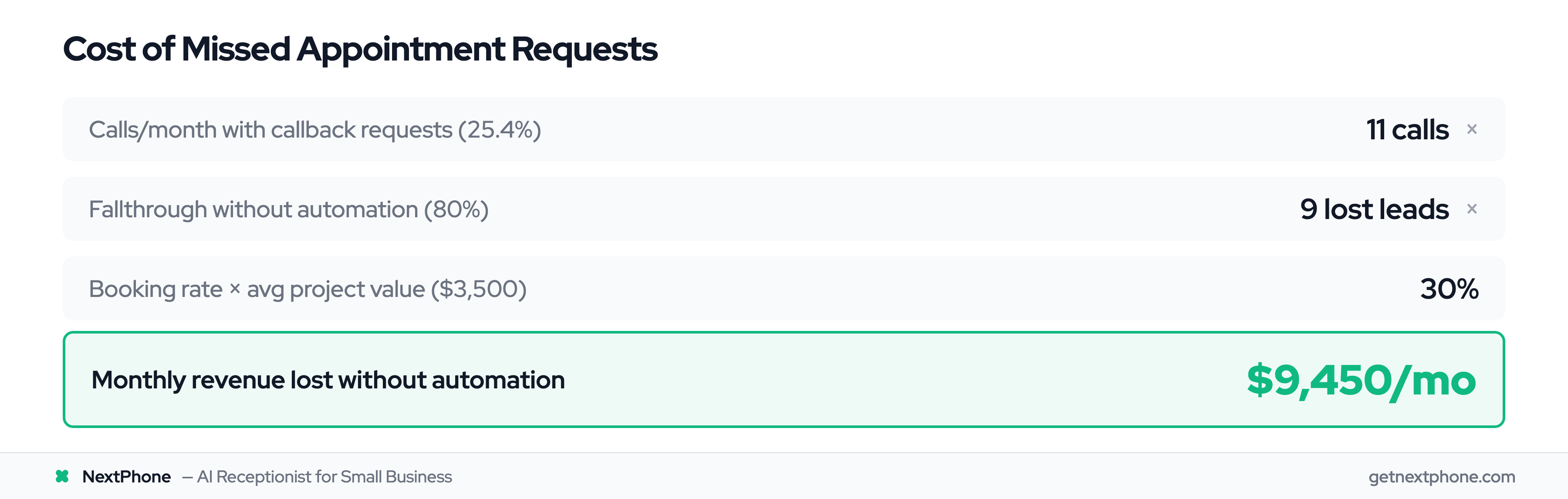
Let's make this concrete. For a typical small business receiving 42 calls per month, roughly one in four is a callback request. That's 11 calls from people ready to book.
Without a calendar automation system, 80% of these callbacks never happen. You mean to call them back, but you're busy. The note gets buried. They've already moved on.
That's 9 lost booking opportunities per month. At a 30% conversion rate and $3,500 average project value, you're losing $9,450 per month in revenue. Over a year, that's $113,400.
The Calendly Gap: What Changed in August 2024
For years, Apple Calendar users relied on Calendly as a bridge. Your AI receptionist or virtual assistant would direct callers to a Calendly link, which would then sync back to your iCloud calendar.
That workaround ended in August 2024 when Calendly dropped Apple Calendar integration entirely.
The timing couldn't be worse. According to Mac market share data, 76% of large businesses are now using more Apple devices, with 93% of CIOs reporting increased Apple device usage. Mac has 29.62% of the U.S. desktop market, with user satisfaction rates hitting 95%.
Apple users (especially creative professionals, consultants, and agencies) need solutions that work with their ecosystem, not against it.
Understanding CalDAV: Apple Calendar's Integration Protocol
Unlike Google Calendar, which offers a modern REST API, Apple Calendar uses CalDAV, an older but reliable protocol for calendar communication.
Here's what you need to know.
What is CalDAV? (The Simple Explanation)
CalDAV is a calendar extension of WebDAV, a protocol that allows clients to manage calendars and events on a server. Think of it as an older highway system that still gets you where you need to go. It's just not as modern as Google Calendar's superhighway.
According to the OneCal integration guide, "iCloud does not provide a REST API for calendars, so CalDAV is the only way to integrate iCloud Calendar into your app."
CalDAV vs REST API: Why Apple Calendar Is Different
Here's a quick comparison:
| Feature | CalDAV (Apple) | REST API (Google) |
|---|---|---|
| Authentication | Basic Auth with app-specific password | OAuth 2.0 |
| Webhook Support | No | Yes |
| Real-time Sync | Polling required | Push notifications available |
| Ease of Integration | Moderate (older standard) | Easier (modern architecture) |
Google Calendar's REST API "leverages a RESTful architecture, making it easier to integrate compared to CalDAV," according to Aurinko's API comparison.
The Limitations You Should Know About
Let's be honest about what CalDAV can't do:
- No native webhooks: iCloud doesn't have webhook support, as noted in Aurinko's CalDAV guide. This means no instant push notifications when calendar events change.
- Basic Authentication only: You can't use OAuth. Instead, you need an app-specific password: a 16-character code separate from your main Apple ID password.
- No PATCH support: You must do full PUT requests to update events (minor technical limitation, but worth knowing).
Why It Still Works Well Despite Limitations
Here's the thing: for appointment scheduling, these limitations don't matter much in practice.
Your AI receptionist doesn't need real-time webhooks. It's the one creating appointments, not reacting to changes. The sync happens reliably within 30-60 seconds, which is fast enough to prevent double-booking. And app-specific passwords are actually more secure than storing your main Apple ID credentials.
For business use (checking availability, booking appointments, confirming times), CalDAV works just fine.
Why Mac + iPhone + iPad Users Need Seamless Calendar Sync
This is where Apple's ecosystem shines.
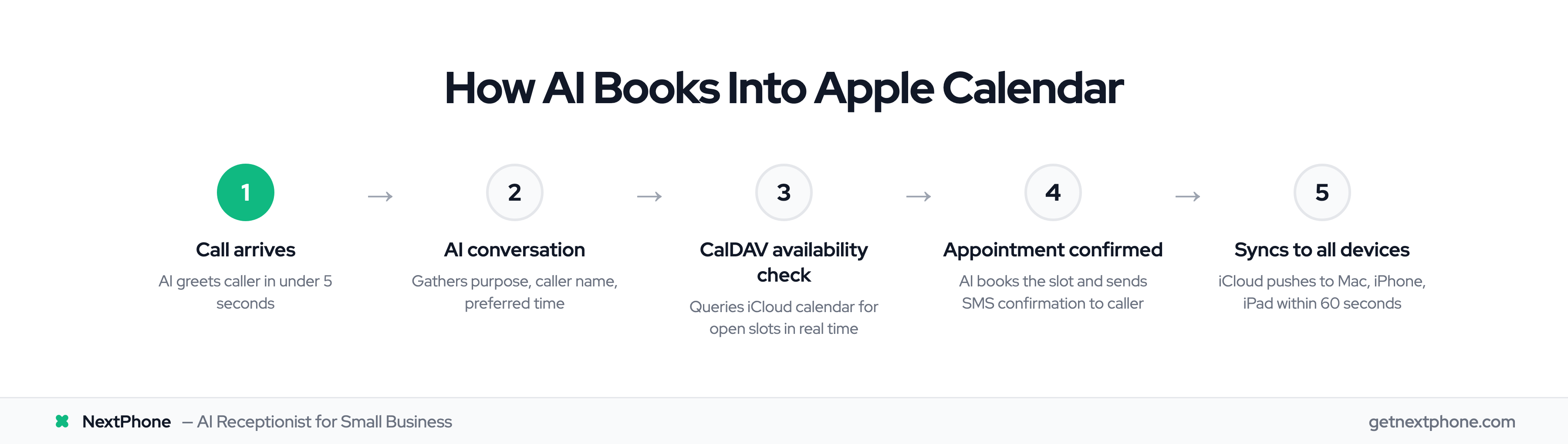
When an AI receptionist books an appointment on your Apple Calendar, it syncs automatically across every device you own: your MacBook in the office, your iPhone on-site, your iPad at home, even your Apple Watch.
One source of truth. Everywhere you look.
iCloud Sync Across All Devices
iCloud continuously syncs your calendar when devices are online. Book an appointment at 2 PM and within seconds, it appears on your Mac calendar app, iPhone calendar, iPad calendar, and the iCloud web interface.
No manual entry. No platform switching. No wondering if you updated the right calendar.
The Creative Professional Workflow
Mac users are heavily concentrated in creative industries: photographers, videographers, designers, architects, consultants. User satisfaction rates for Mac hit 95%, and these professionals chose Apple for design, reliability, and ecosystem integration.
They don't want to switch to Google Workspace just to get calendar automation. They want their tools to work within the Apple ecosystem they've already invested in.
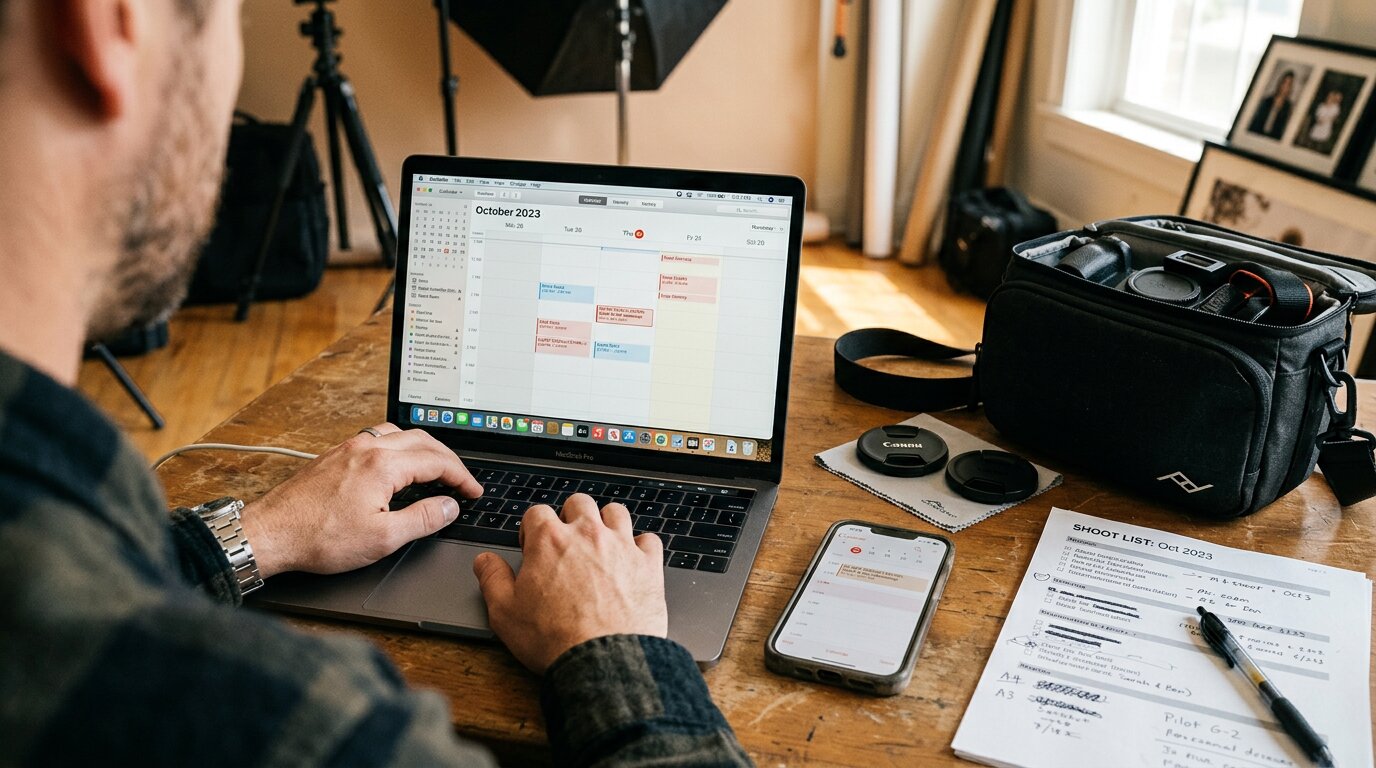
Consider this scenario: You're a wedding photographer editing photos on your MacBook. Your AI receptionist answers a call on your business line, checks your iCloud calendar, books a consultation for next Tuesday. Within seconds, the appointment appears on your Mac, iPhone, and iPad.
No manual entry. No platform conflicts. Pure Apple ecosystem harmony.
5 Ways Calendar Integration Transforms Your Business
Here's what changes when your AI receptionist connects directly to your Apple Calendar:
1. Never Miss an Appointment Request Again
Urgent calls rank among the top reasons people call, using keywords like "emergency," "urgent," or "ASAP." These are high-intent callers ready to book immediately.
Your AI answers every call in under 2 seconds, checks your real-time calendar availability, and books the appointment while the caller is still on the line. No voicemail tag. No "let me check my calendar and call you back." Instant confirmation.
2. Eliminate Double-Booking Automatically
The AI checks your Apple Calendar before confirming any appointment time. If that slot is already taken (client meeting, personal appointment, blocked time), it offers the next available opening.
You can even set buffer times between appointments so you're not racing from one meeting to the next.
3. Reduce No-Shows with Automated Confirmations
Once the appointment is booked, the AI can send an SMS confirmation with all the details: date, time, service type, your contact info. The caller has written confirmation in their text messages. You have the appointment synced across all your devices.
Confirmation messages reduce no-shows by reminding clients of their commitment.
4. Capture After-Hours Bookings 24/7
Your AI receptionist doesn't sleep. It answers calls at 9 PM on Saturday, 6 AM on Sunday, during holidays, whenever potential clients reach out.
For consultants traveling internationally or photographers shooting weekend weddings, this means capturing bookings while you're unavailable. No more Monday morning voicemails from people who already booked with someone else.
5. Professional Client Experience
Instead of "Can I get your number and I'll call you back to schedule?", your clients hear: "I can book that consultation for you right now. I have Tuesday at 2 PM or Thursday at 10 AM available. Which works better?"
Immediate confirmation. Professional experience. No friction.
Who Benefits Most? Mac User Success Stories
Let's get specific about who needs this integration most.
Creative Professionals (Photographers, Designers, Videographers)
You're at a wedding all Saturday. An inquiry call comes in from a couple who saw your work on Instagram. They want to book a consultation for next week.
Your AI answers, gathers their information (names, wedding date, style preferences), checks your iCloud calendar, books a weekday consultation based on your studio hours. The couple gets instant confirmation. You get the booking synced across all devices, without interrupting the wedding you're shooting.
By Monday morning, when you're back at your MacBook reviewing photos, the consultation is already in your calendar.
Consultants and Coaches
You work across Mac, iPad, and iPhone. A potential client calls during your morning run. Your AI answers, asks about their goals and challenges, checks your calendar on all synced devices, books an afternoon discovery call slot.
By the time you're back home and checking your iPhone, the appointment is there. When you sit down at your Mac to prepare for the call, all the client details are in your email inbox (the AI sent a notification) and the appointment is in your calendar.
Professional Services (Lawyers, Accountants, Architects)
Small law firms and professional services often run entirely on Mac. All attorneys use MacBooks. The receptionist (or lack thereof) is the bottleneck.
An AI receptionist fields initial consultation requests, gathers case details (or project scope), checks partner availability across the firm's shared iCloud calendar, and books consultations. Partners see appointments appear on their devices automatically.
No more front desk phone tag. No more "let me check his calendar and call you back."
Agencies and Small Teams
Four designers, all on MacBooks. Your AI receptionist handles new project inquiries, asks qualifying questions (budget, timeline, project type), books discovery calls when the team has open slots.
Everyone's calendars stay synced. No more Slack messages asking "who's available Tuesday at 3?" The AI already checked and booked only available times.