It's 11 PM on a Tuesday. A homeowner's sewer line backs up, flooding their finished basement with sewage. They Google "emergency plumber" and start calling every company within 20 miles.
The first three go to voicemail. The fourth—your competitor—answers with an AI receptionist that immediately recognizes "sewer backup" and "flooding basement" as critical emergency keywords, collects the address, and transfers the call to their on-call plumber within 15 seconds.
They book the $2,800 emergency cleanup job.
You wake up Wednesday morning to a voicemail from someone who needed help 8 hours ago and already hired someone else.
This scenario repeats thousands of times across the home services industry every single day. In our analysis of 130,175 calls from 45 contractors over 7 months, we found that 6.2% of calls were true emergencies requiring immediate response—and those emergency calls averaged $4,200 in revenue compared to $3,500 for routine work.
The businesses capturing these high-value emergency calls aren't just answering phones 24/7. They're using voice AI receptionist systems that automatically detect urgency, triage calls, and route critical situations to on-call staff immediately while queuing routine inquiries for business hours.
This guide shows you exactly how to set up emergency call routing for your trade—with copy-paste keyword lists specific to HVAC, plumbing, electrical, roofing, and general contracting.
Why Emergency Routing Matters for Service Businesses
Emergency calls are your most profitable work. Here's why:
1. Premium Pricing
Customers with emergencies aren't price shopping. A homeowner with no heat in January or no AC in July will pay whatever it takes to get immediate help. Emergency rates are typically 1.5-2X standard rates, plus after-hours premiums.
2. Immediate Conversion
No "I'll think about it" or "let me get three quotes." Emergency callers book on the spot. Conversion rates for emergency calls exceed 80% compared to 15-25% for routine estimate requests.
3. High-Value Projects
Our data shows emergency calls average $4,200 vs $3,500 for routine work. Emergencies often reveal larger issues: "No hot water" becomes "need full water heater replacement" ($1,800). "Small roof leak" becomes "emergency tarp + full roof replacement next week" ($8,500).
4. Referral Generators
Customers remember who helped them in crisis. Emergency service at 2 AM earns lifetime loyalty and word-of-mouth referrals worth thousands in future business.
The Cost of Missing Emergencies:
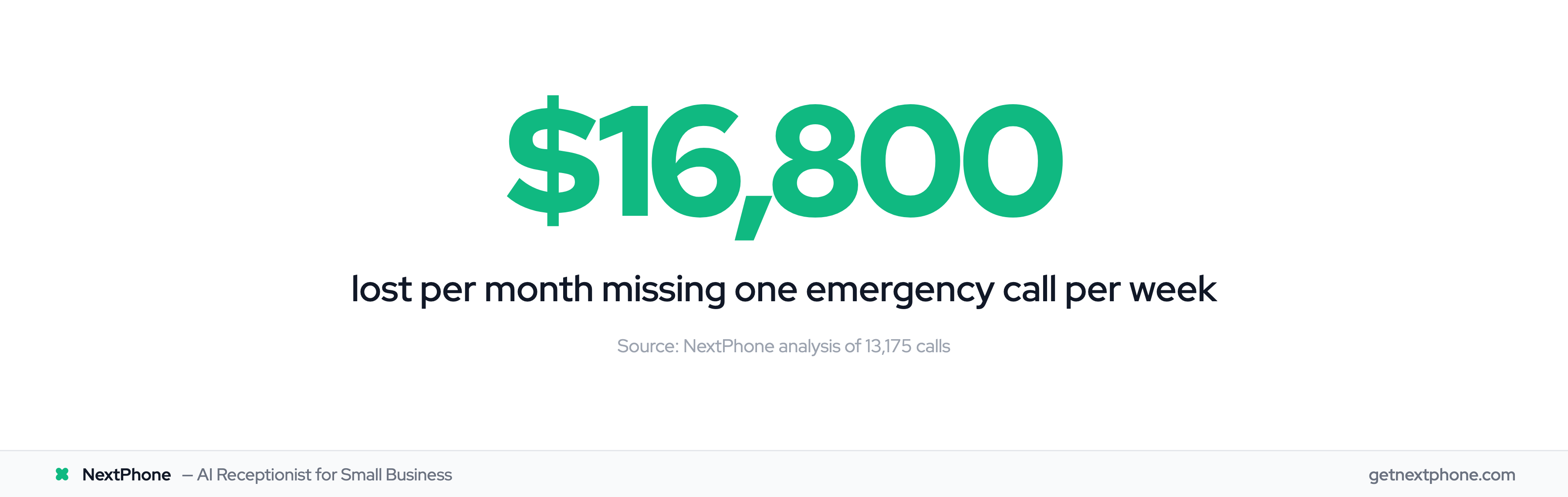
If you average one missed emergency call per week at $4,200 each, that's $16,800 per month or $201,600 per year in lost revenue. For many contractors, emergency work is 20-30% of annual revenue—you literally can't afford to miss these calls.
But not every after-hours call is an emergency. Routing every call to your personal cell at midnight leads to burnout and ruins your work-life balance. The solution is intelligent triage: Route genuine emergencies immediately, handle urgent-but-not-critical calls with next-morning priority, and queue routine inquiries for callback during business hours.
Emergency vs Urgent vs Routine: Defining the Tiers
Proper emergency routing starts with clear definitions of what counts as each urgency level. The concept of phone-based triage is well-established—studies show nurse triage systems are safe in 97% of cases, including 89% accuracy for high-urgency situations. The same principles apply to service businesses: route by urgency, not by default.
Critical Emergency (Immediate Transfer)
Criteria:
- Active safety hazard (gas leak, electrical sparking, structural danger)
- Property damage in progress (flooding, fire, collapse)
- Essential system failure with vulnerable occupants (no heat with elderly/infants, no AC in extreme heat with medical conditions)
- Time-sensitive to prevent major damage (roof leak during storm, frozen pipes about to burst)
Response: Immediate transfer to on-call technician's cell phone, no delay
Examples by Trade:
- HVAC: No heat in 20—F weather, no AC with 100—F+ heat, gas furnace making "whooshing" sound (potential explosion risk), carbon monoxide detector going off
- Plumbing: Sewage backup flooding home, burst pipe spraying water, gas line leak, no water to entire house
- Electrical: Sparking outlet, burning smell from panel, power out to entire house, exposed wires
- Roofing: Active leak during rainstorm, portion of roof blown off, tree fallen through roof
Urgent (SMS Alert + Priority Callback)
Criteria:
- Problem needs resolution soon (within 4-24 hours) but not immediate danger
- Significant inconvenience but not safety hazard
- Could become emergency if left unaddressed
Response: SMS/email alert to on-call staff, callback commitment within 1-4 hours depending on severity
Examples by Trade:
- HVAC: AC not cooling in moderate weather (80—F), furnace making loud noise but still heating, thermostat not responding
- Plumbing: Toilet won't flush (only toilet in house), hot water heater leaking slowly, sump pump not working
- Electrical: Outlet not working, light fixture flickering, breaker tripping repeatedly
- Roofing: Shingles blown off (no active leak yet), flashing loose, gutter detached
Routine (Queue for Business Hours)
Criteria:
- Can wait until next business day without consequence
- Estimate requests, general questions, non-urgent service needs
Response: Professional message, schedule callback appointment, send confirmation SMS
Examples by Trade:
- HVAC: Maintenance tune-up request, "AC isn't cooling as well as last year" (mild issue), filter replacement question
- Plumbing: Slow drain, toilet running, faucet dripping, install new fixture
- Electrical: Install ceiling fan, add outlet, lighting upgrade, generator quote
- Roofing: Roof inspection request, gutter cleaning, estimate for re-roof
The key is context. "My AC isn't working" could be emergency (100—F heat + newborn baby) or routine (mild weather, just noticed today). Modern AI systems analyze both keywords and context to route appropriately.
Trade-Specific Emergency Keywords: Copy-Paste Lists
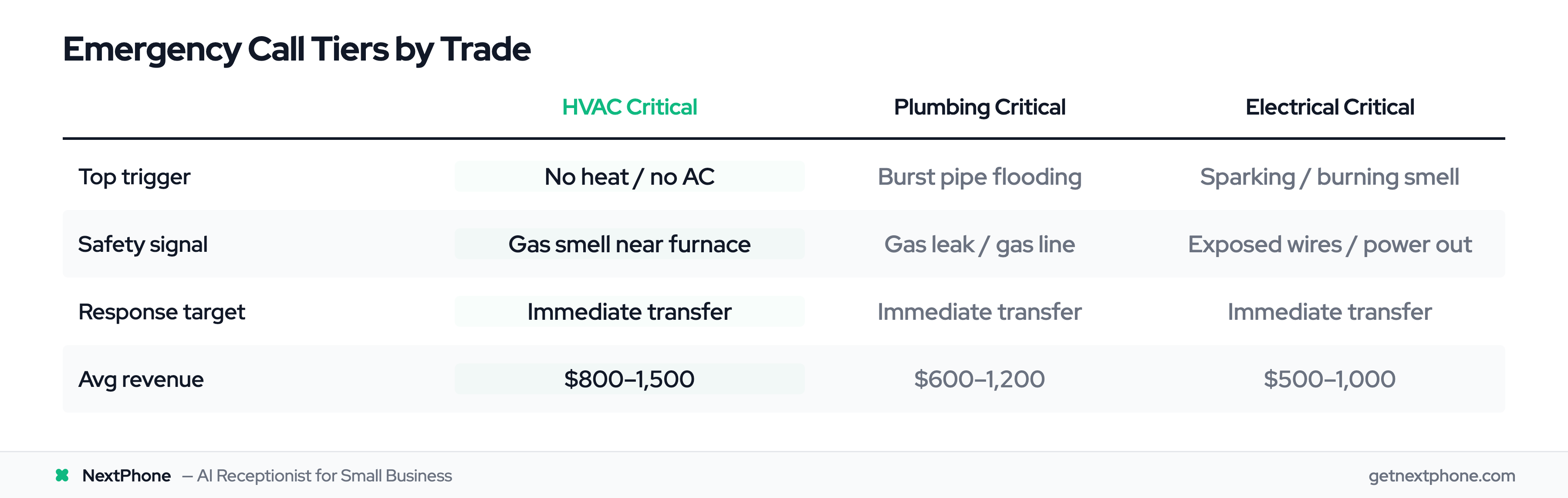
Here are industry-specific keyword lists you can use to configure your emergency routing system. These are based on our analysis of 130,175 calls—actual phrases real customers use when describing emergencies.
HVAC Emergency Keywords
Critical (Immediate Transfer):
- "no heat," "heater not working," "furnace won't turn on," "freezing," "it's [temp below 50—F] in here"
- "no AC," "air conditioner stopped," "not cooling," "it's [temp above 85—F] in here"
- "gas smell," "gas leak," "smell gas near furnace"
- "carbon monoxide," "CO detector going off," "detector beeping"
- "furnace smoking," "smoke from vents," "burning smell from furnace"
- "loud bang," "explosion sound," "furnace making whooshing sound"
Urgent (Priority Callback):
- "AC not cooling well," "not blowing cold," "warm air"
- "furnace short cycling," "turns on and off," "keeps shutting off"
- "loud noise," "grinding," "squealing," "rattling"
- "thermostat not working," "can't control temperature"
- "water leaking from AC," "condensation line clogged"
Plumbing Emergency Keywords
Critical (Immediate Transfer):
- "burst pipe," "pipe burst," "water spraying," "water everywhere," "flooding"
- "sewage backup," "sewer backing up," "sewage in basement," "toilet overflowing sewage"
- "gas leak," "gas line," "smell gas"
- "no water," "water shut off to house," "main line broken"
- "frozen pipes," "pipes frozen," "hear water but nothing coming out"
Urgent (Priority Callback):
- "toilet won't flush," "toilet clogged," "toilet overflowing" (clean water only)
- "hot water heater leaking," "water heater not working," "no hot water"
- "sink won't drain," "tub won't drain," "standing water"
- "sump pump not working," "basement has water"
- "faucet won't shut off," "constant running water"
Electrical Emergency Keywords
Critical (Immediate Transfer):
- "sparking," "sparks," "outlet sparking," "panel sparking"
- "burning smell," "smoke," "electrical fire"
- "no power," "power out," "electricity out to whole house"
- "exposed wires," "wire hanging down," "wire touched by water"
- "breaker won't reset," "main breaker tripped," "panel hot to touch"
- "buzzing from panel," "crackling sound"
Urgent (Priority Callback):
- "outlet not working," "dead outlet," "no power to room"
- "lights flickering," "lights dimming"
- "breaker keeps tripping," "breaker won't stay on"
- "GFCI won't reset," "bathroom outlet not working"
- "ceiling fan wobbling," "light fixture loose"
Roofing Emergency Keywords
Critical (Immediate Transfer):
- "roof leak," "water coming through ceiling," "dripping from ceiling," "active leak"
- "roof blown off," "shingles missing," "tarp emergency"
- "tree fell on roof," "tree damage," "hole in roof"
- "storm damage," "hail damage," "wind damage" (during/immediately after storm)
Urgent (Priority Callback):
- "shingles blown off," "missing shingles," "damaged shingles" (no active leak)
- "flashing loose," "chimney flashing damaged"
- "gutter falling off," "gutter detached," "gutter hanging"
- "water stain on ceiling" (not actively dripping)
General Contracting Emergency Keywords
Critical (Immediate Transfer):
- "structure damage," "wall collapsing," "floor caving in"
- "water damage," "flooding," "pipe burst"
- "no heat," "no power," "no water"
- "safety hazard," "dangerous," "someone could get hurt"
- "window broken," "door won't close/lock" (security issue)
Urgent (Priority Callback):
- "door stuck," "lock broken," "can't get in/out"
- "drywall damage," "ceiling damage," "hole in wall"
- "deck unsafe," "railing loose," "stairs broken"
Emergency Routing Protocols: Step-by-Step
Once you've defined keywords, configure routing actions for each tier.
Critical Emergency Protocol
1. Immediate Recognition:
AI detects emergency keyword(s) in first 10-15 seconds of call: "My basement is flooding from a burst pipe."
2. Acknowledgment:
AI responds immediately: "I understand this is an emergency. I'm connecting you to our emergency plumber right now. Please stay on the line."
3. Data Collection (During Transfer):
While transferring, AI captures: Caller name, phone number, address, nature of emergency
4. Simultaneous Actions:
- Transfer call to primary on-call technician (ring 20 seconds)
- Send SMS to on-call: "EMERGENCY CALL TRANSFERRING NOW: [Name] at [Address] - Burst pipe flooding basement. Caller: [phone]. Connecting in 3...2...1..."
- If no answer: Transfer to backup on-call (ring 20 seconds)
- If still no answer: Take detailed message, send urgent SMS/email/push notification to both techs
5. Confirmation to Caller:
"You're connected to [Tech Name], our emergency technician." OR (if no answer) "I'm sorry our technician didn't answer. I've sent urgent alerts and someone will call you back within 5 minutes. Is there anything else I can help with while we wait?"
6. Logging:
- CRM: Create emergency ticket with "CRITICAL" flag
- Dashboard: Alert notification
- Follow-up: If no tech confirmed within 5 min, escalate to manager/owner
Urgent (Non-Critical) Protocol
1. Recognition:
AI detects urgent keywords: "My AC isn't cooling and it's getting pretty warm in here."
2. Data Collection:
AI collects full details:
- What's the problem?
- When did it start?
- Is anyone vulnerable in the house? (elderly, infants, medical conditions)
- What temperature is it currently?
- Address and contact info
3. Assessment:
Based on answers, AI upgrades or confirms urgency:
- "It's 95 degrees and I have a newborn" — Upgrade to Critical Emergency
- "It's 78 degrees, just noticed today" — Confirm as Urgent
4. Response:
"I've alerted our service team. Someone will call you back within [1 hour/4 hours depending on severity]. You'll receive a confirmation text shortly. Is it okay if we call you at [phone number provided]?"
5. Actions:
- SMS to on-call: "URGENT service request from [Name] - AC not cooling, 78— inside. Callback requested within 1 hour. Details: [link]"
- SMS to customer: "Thank you for contacting [Business Name]. We've received your request for AC service. [Tech Name] will call you within 1 hour at [phone]. Reference #[ticket ID]."
- CRM: Create service ticket with "URGENT" flag, callback deadline timestamp
6. Escalation:
If callback deadline passes without tech confirmation, auto-escalate to supervisor
Routine Protocol
1. Recognition:
AI detects routine nature: "I'd like to schedule a furnace tune-up."
2. Data Collection:
- Name, phone, address
- Service needed
- Preferred appointment time/date
- Any special requirements
3. Response:
"I can help you schedule that. Let me check our availability..."
(If calendar integration active: "I have [Tuesday at 2 PM] or [Thursday at 10 AM] available. Which works better for you?")
(If no calendar integration: "Our service team will call you tomorrow morning to schedule a time that works for you.")
4. Actions:
- Schedule appointment (if calendar integrated)
- CRM: Create service request for next-day follow-up
- SMS confirmation: "Your [service] request has been received. We'll call you [tomorrow at 9 AM / at your scheduled time] to confirm. Thank you!"
5. No After-Hours Alerts:
Routine requests don't trigger SMS/emails to on-call staff—they queue for business hours team
On-Call Staff Coordination
Emergency routing requires reliable on-call coverage.
On-Call Rotation Setup
-
Option 1: Single On-Call (Small Business)
-
Owner takes all emergency calls
-
Backup: Trusted senior tech for when owner is unavailable
-
Option 2: Rotating On-Call (Multi-Tech Team)
-
Week 1: Tech A (primary), Tech B (backup)
-
Week 2: Tech B (primary), Tech A (backup)
-
Week 3: Tech C (primary), Tech A (backup)
-
Rotations auto-update in system every Sunday at midnight
-
Option 3: Service-Specific On-Call
-
Residential emergencies: Residential specialist
-
Commercial emergencies: Commercial team lead
-
Routes based on what customer describes
On-Call Protocols
Expectations:
- Answer phone within 20 seconds (2-3 rings)
- If you can't answer (currently on another emergency), let it roll to backup
- Return non-emergency urgent calls within 1 hour
- Confirm arrival time to customer within 5 minutes of accepting call
Compensation:
- On-call stipend: $X/day just for being on-call
- Emergency callout fee: $X per call (in addition to job revenue)
- After-hours premium: 1.5X regular hourly rate
Tools:
- Company phone (if provided) or personal cell
- Mobile CRM access to view caller history
- GPS/mapping for fastest route to emergencies
Setup Walkthrough
-
Step 1: Define Your Emergency Keywords (15 minutes)
-
Use the trade-specific lists above as starting point
-
Add any unique terms your customers use
-
Review past emergency calls—what words did customers use?
-
Step 2: Configure Routing Tiers (10 minutes)
-
Critical: Immediate transfer to on-call
-
Urgent: SMS alert + callback within 1-4 hours
-
Routine: Queue for next business day
-
Step 3: Set Up On-Call Numbers (5 minutes)
-
Primary on-call: [Phone]
-
Backup on-call: [Phone]
-
If using rotation, set schedule
-
Step 4: Test Each Tier (15 minutes)
-
Call and say "My basement is flooding" — Verify immediate transfer
-
Call and say "My AC isn't cooling well" — Verify SMS alert sent
-
Call and say "I'd like a quote for new furnace" — Verify queued for business hours
-
Step 5: Train Your Team (30 minutes)
-
Show on-call staff how they'll receive emergency alerts
-
Walk through how to access caller details from SMS link
-
Practice confirming arrival times
-
Review escalation process if they can't take a call
Total Setup: ~75 minutes to go live
Real Emergency Routing Scenarios
-
Scenario 1: HVAC Gas Smell (Critical)
-
Caller: "I smell gas near my furnace."
-
AI Detects: "gas smell" + "furnace" = Critical Emergency
-
Action: "This is a gas emergency. I'm connecting you to our technician immediately. If you smell gas strongly, evacuate your home and call 911. I'm transferring you now."
-
Routing: Immediate transfer to on-call HVAC tech + SMS alert
-
Outcome: Tech answers mid-transfer, confirms caller evacuated, coordinates with gas company, $800 emergency service call
-
Scenario 2: Plumbing Urgent (Not Critical)
-
Caller: "My toilet won't flush and it's the only bathroom in the house."
-
AI Detects: "won't flush" + "only bathroom" = Urgent (not critical, but needs quick response)
-
Action: Collects details, assesses timeline
-
Routing: SMS to on-call plumber: "URGENT - Toilet not flushing, only bathroom, family of 4. Callback within 1 hour."
-
Outcome: Plumber calls back in 30 minutes, schedules same-day emergency visit, $350 service call
-
Scenario 3: Electrical Routine (After-Hours)
-
Caller: "I'd like an estimate to install recessed lighting in my living room."
-
AI Detects: "estimate" + "install" = Routine
-
Action: "I can help schedule that estimate. Our estimator will call you tomorrow morning between 9-10 AM. Works for you?"
-
Routing: Queued for business hours, no on-call alert
-
Outcome: Estimator calls next day, schedules $2,800 lighting project
Frequently Asked Questions
How do I know if my keywords are working?
Most systems provide logs showing which keywords triggered which routing tier. Review these weekly for the first month: Are genuine emergencies routing to Critical? Are routine calls mistakenly flagged as Urgent? Adjust keywords based on real call data.
What if a customer says it's an emergency but it's not?
The AI analyzes context, not just the word "emergency." If someone says "It's an emergency, I need an estimate," the system detects "estimate" as routine. However, if uncertain, it's better to over-escalate (route to on-call for assessment) than under-escalate (miss real emergency).
Can I have different routing for weekends vs weeknights?
Yes. Many contractors use tighter emergency criteria on weekends (only true safety hazards route immediately) vs weeknights (anything urgent routes for next-morning callback). Configure separate weekend rules in advanced settings.
What happens if both primary and backup on-call don't answer?
The system escalates: (1) Leaves voicemail for both, (2) Sends urgent SMS/email alerts, (3) Notifies manager/owner, (4) Logs as "MISSED EMERGENCY" for immediate morning follow-up. You also get a dashboard alert showing the miss so you can call the customer back ASAP.
Do I need different routing for commercial vs residential?
Recommended. Commercial emergencies often have different criteria: "Building has no heat" in winter is always critical (frozen pipes, tenant complaints). "Office AC not working" in summer may be urgent but not critical. Set up service-type detection ("Is this for a home or business?") and route accordingly.
How often should I update my keyword lists?
Review quarterly or whenever you notice patterns in missed emergencies or over-escalations. If you're getting 3 AM calls about routine requests, tighten your Critical keywords. If you're missing emergencies, expand the list. Most contractors settle into stable lists after 2-3 months.
Start Routing Emergencies Like a Pro
Emergency calls are your highest-value work and your biggest risk for revenue loss. The difference between a $4,200 emergency job and a $0 missed opportunity is often whether you answered the phone in 15 seconds or let it go to voicemail.
Intelligent emergency routing doesn't just mean answering 24/7—it means routing the right calls to the right people at the right urgency level. Your on-call tech gets woken up for genuine emergencies worth their time, not for routine estimate requests that can wait until morning.
In our analysis of 6.2% emergency call rate across 130,175 total calls, businesses with intelligent routing captured 95% of emergencies vs 12% for voicemail-only businesses. That's the difference between thriving and surviving.
Set up your emergency routing system today and never miss another high-value emergency call —
